

Evidence
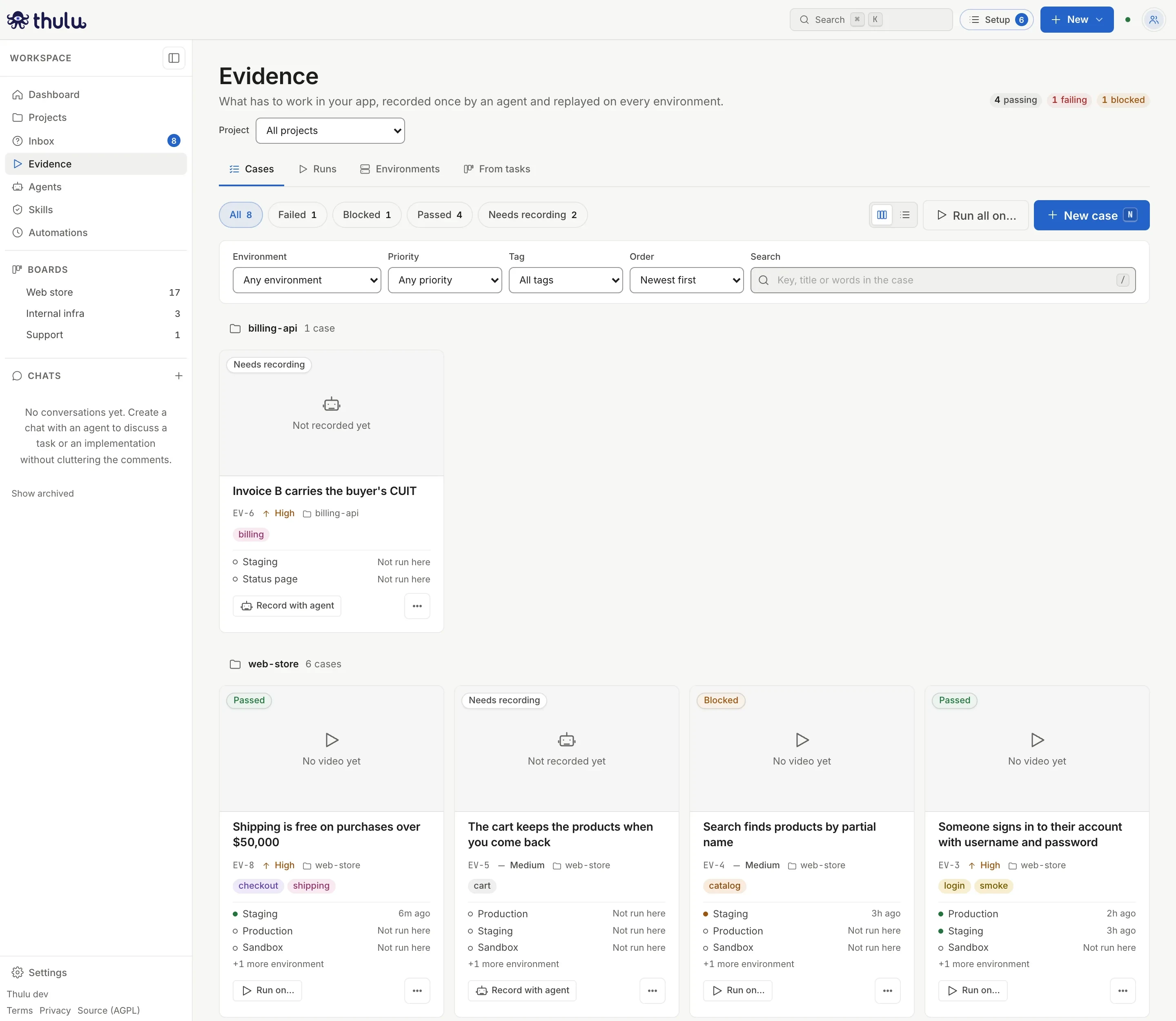
Evidence is the workspace’s library of test cases. A case says in plain words what has to work in your app; an agent records it once with the browser, and from then on Thulu replays it by itself on every environment, with no language model, every time you click “Run”, on a schedule, after a deploy or from your CI. Each run leaves a video, annotated screenshots and a pass or fail per check.
Cases do not need a task. It is meant for QA, product and whoever signs off a release: people who need to know whether the app works without reading code or logs.
The screen is under “Evidence” in the sidebar (/evidence/). It used to be called QA: /qa/ redirects to the “From tasks” tab, where the cases written inside tasks remain (see Test cases and videos).
Concepts
Section titled “Concepts”| Concept | What it is |
|---|---|
| Case | What has to work: title, description, steps, expected result, priority, tags and, if you want, a project. It has a key EV-1, EV-2… unique in the workspace. |
| Recording | The browser script the agent left, with the steps and the checks. You download it as JSON from the case. Addresses are relative, so the same recording runs on staging, on production or on a Sandbox. |
| Environment | Where cases run. There are three kinds, explained below. |
| Batch | The runs that started together: a “Run all”, a schedule tick or a deploy. They show on the “Runs” tab. |
| Run | One case replayed on one environment: status, checks, video, screenshots and report. |
The three kinds of environment:
| Kind | What it is | Which cases it runs |
|---|---|---|
| Environment of a project | Staging, production or any environment of the project, with its address. It also shows on the project page. | That project’s cases and the ones with no project. |
| Sandbox | A fresh copy of the project that Thulu starts from a branch with the init script, for that batch only, and deletes when it ends. Each project has one. | Only that project’s cases. |
| Another site | Any address outside your projects: a landing page, a vendor’s staging. | Every case in the workspace. Its schedule can be narrowed to a project or a tag. |
The statuses of a case and of a run:
| Status | What it means |
|---|---|
| “Needs recording” | No agent has recorded it, so it cannot run. |
| “Not run yet” | It is recorded and waiting for its first run. |
| “Passed” | Every check passed. |
| “Failed” | A check failed: the app did not do what was expected. |
| “Blocked” | A step failed before reaching a check (it did not find a button, a page did not load). |
| “Waiting” | The run is waiting for a runner to free up. |
| “Running” | It is running now. |
| “Couldn’t run” | The run never got to test anything: the environment did not respond, the runner did not start or it was cut off. When you open it, it gives the cause. It says nothing about the app. |
| “Canceled” | Someone canceled the batch before it got to that case. |
Before you start
Section titled “Before you start”- The developer role or higher in the workspace. With the viewer role you can only look (see What each role can do).
- An environment with an address. Without environments, “Record with agent” and “Run on…” have nowhere to go. To hang it from a project, the project has to exist first (see Projects); without projects, a new environment can only be “Another site”.
- To record: an agent that has the chat stage with its prompt (see Agents) and a model credential for its engine (see Credentials and engines). The agent gets the browser for recording even if its chat stage does not have it configured. On a Docker installation with the browser in “one per run” mode, chats do not get a browser and the agent cannot record.
- To replay: the installation has to be able to pull the browser image (argus-browser). Each batch runs in its own container or pod with that image.
- For the Sandbox: the project has to have an init script that says which port the app listens on (see Sandbox).
Recommended flow: from the first case to automatic runs
Section titled “Recommended flow: from the first case to automatic runs”-
Add the environment where you will test. Open “Evidence” in the sidebar, “Environments” tab, and click “New environment”. Under “Where it runs” leave “An environment of a project” (or choose “Another site” if the app is not a Thulu project; if you have no projects, that choice does not appear), pick the project and fill in “Name” and “Address” with the full address,
https://included. The “Short name” is built automatically and cannot be changed afterward.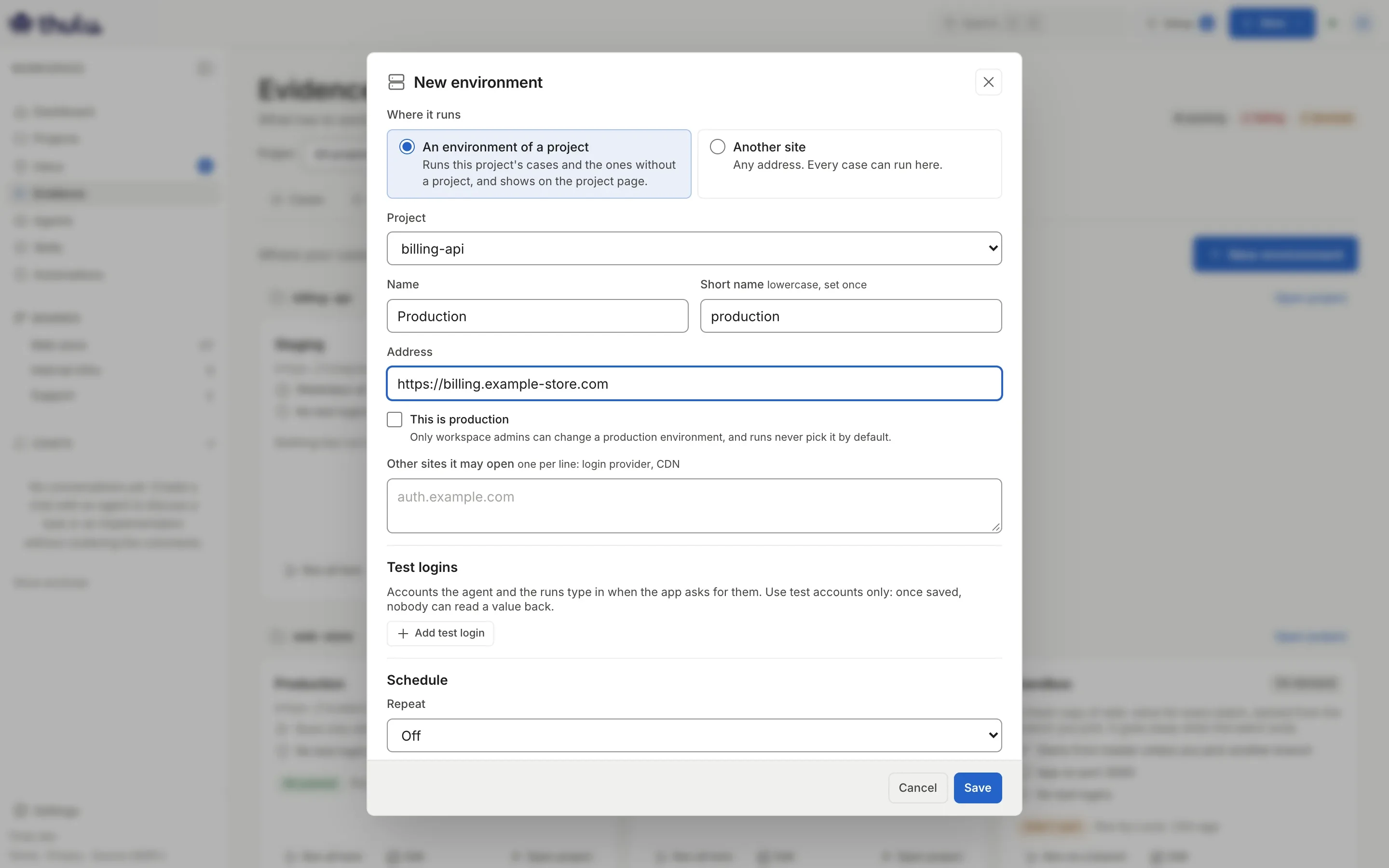
The form for a new environment. Project, name and address are enough to save it. -
If the app asks for a login, add the test logins in the same form. Click “Add test login”, type a name in capital letters (
QA_USER,QA_PASSWORD) and its value. Once saved nobody can read the value again, not even the agent: the browser types it into the field without it passing through the model. Use test accounts only. If the app opens other domains (a login provider, a CDN), add them under “Other sites it may open”, one per line. -
Choose when it runs by itself. Under “Schedule”, “Repeat” offers “Off”, “Every hour”, “Every day at…”, “Weekdays at…” and “Custom (cron)”, with the time zone. Below, “Runs:” repeats in words what you chose. On an “Another site”, “Cases of” and “With the tag” narrow which cases the schedule runs, and a line says how many there are (“Runs the 3 recorded cases of web-store.”); if it runs none, it says that too. If the project is on GitHub, check “Run every recorded case after a successful deploy on GitHub”: it listens to deploys of the project’s repository to the GitHub environment with the same short name. Click “Save”.
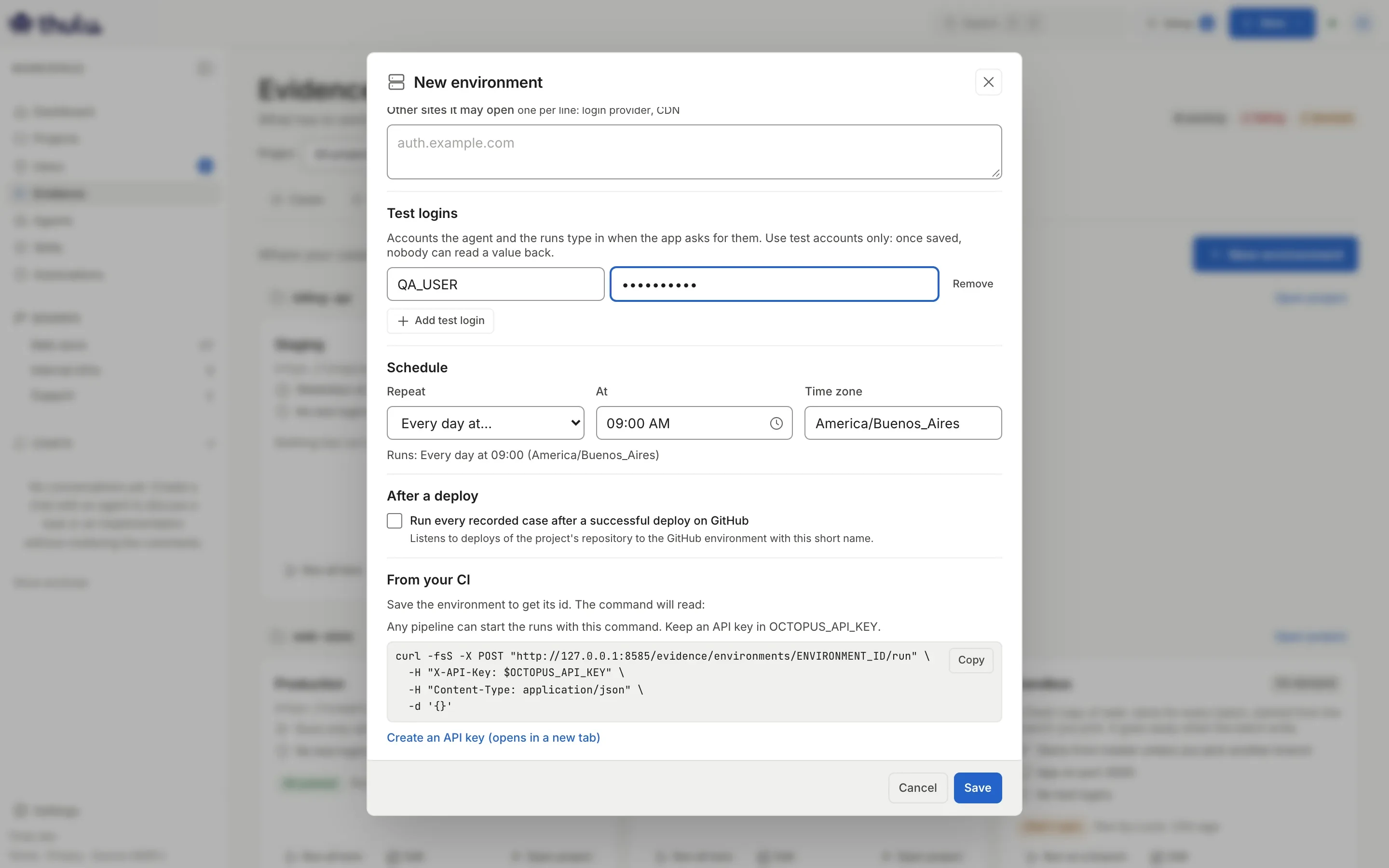
Test logins, schedule and deploy trigger. Before saving, From your CI shows the command with a placeholder for the environment id. -
Write the case. Under “Cases”, click “New case” (or press N). Only “Title” is required, but the agent records better with “What has to work”, the “Steps” one per line and the “Expected result” written as you would tell someone on the team. Choose the priority, the project and the tags. When you save, the case opens as “Needs recording”.
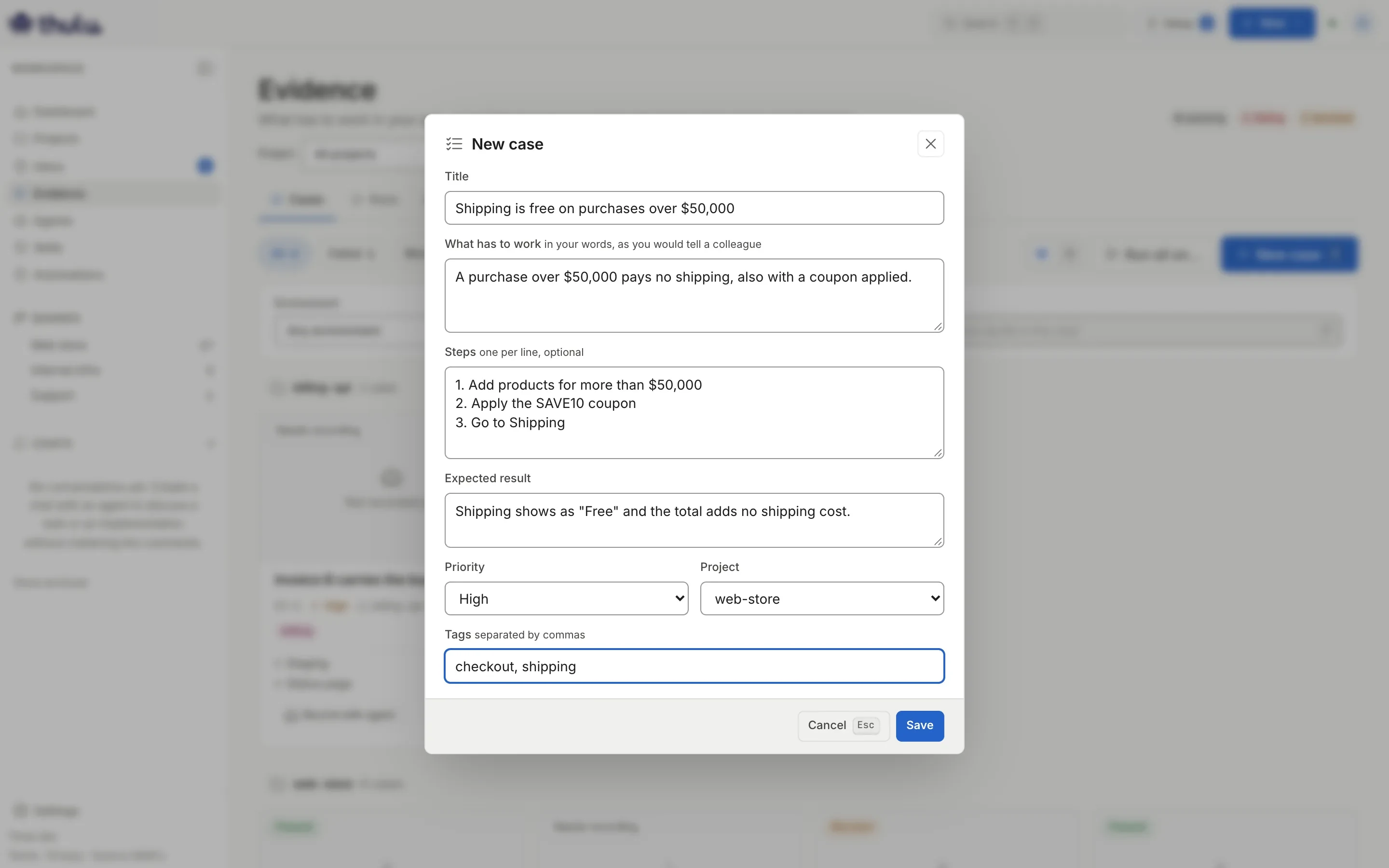
A case written without code: what the person does and what they should see. -
Ask an agent to record it. On the open case (or on its card) click “Record with agent”. Under “Where to record” pick the environment; under “Agent”, the list shows the agents with a chat stage and flags those with no model credential or chat prompt. With “Pick one for me”, the modal says which one will record (“qa will record.”). If that agent is missing something, the modal says so with a link to fix it and “Start recording” stays disabled. Click “Start recording”. A chat with the agent opens in the right-hand panel, starting with the card “Recording EV-8 on Staging” (the instructions the agent receives stay collapsed): you can watch it and guide it if it gets stuck. The agent explores the app, films the flow, verifies each expected result and saves the recording.
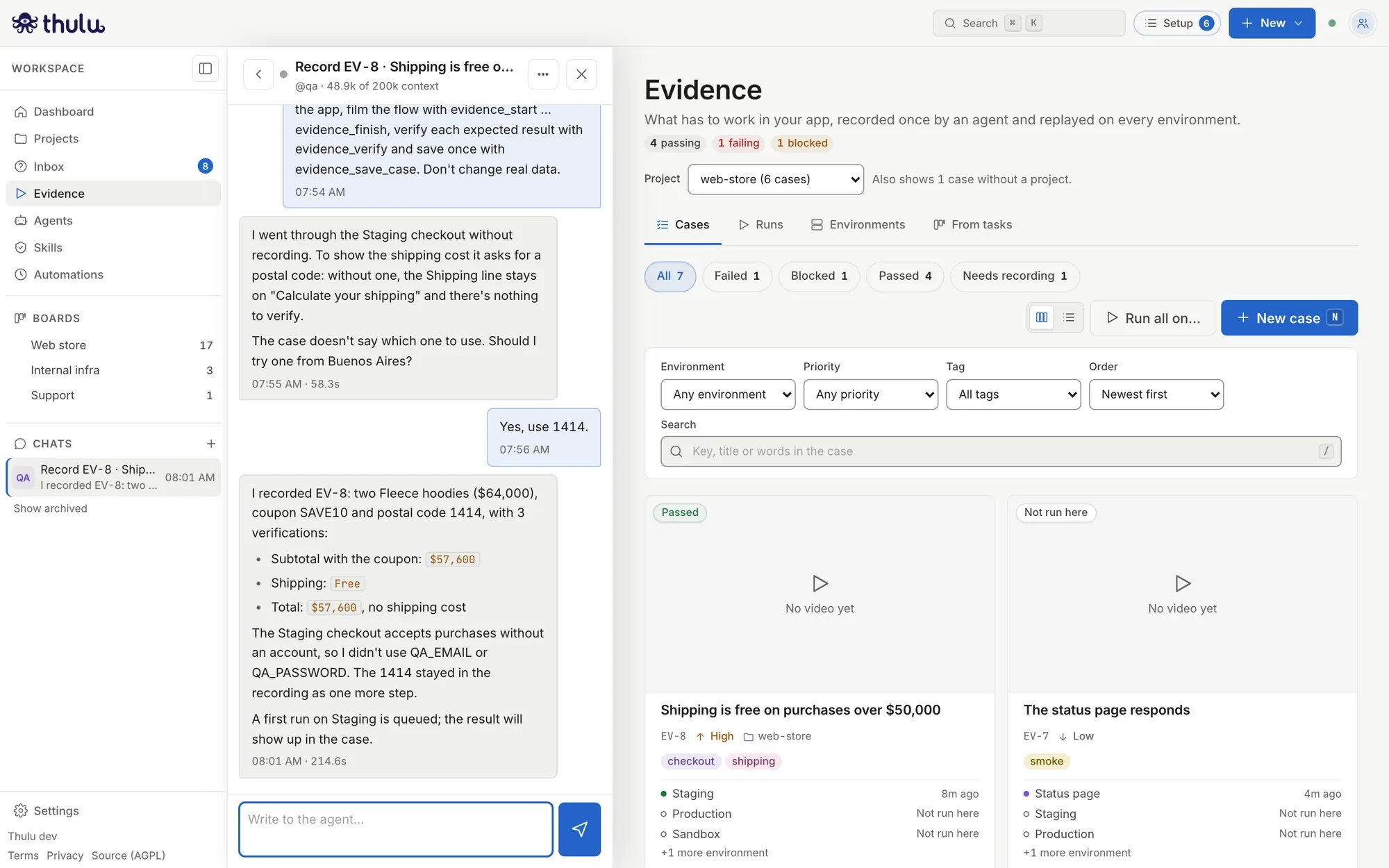
The agent got stuck on the postal code, asked and carried on. When it saves, it reports what it recorded, how many verifications it has and that the first run was queued. -
Watch the first run. When the agent saves, the case runs once on the same environment, now without an agent, so you can see whether it passes. The result shows on the case and under “Runs”. From then on it runs by itself with the schedule and deploys you configured.
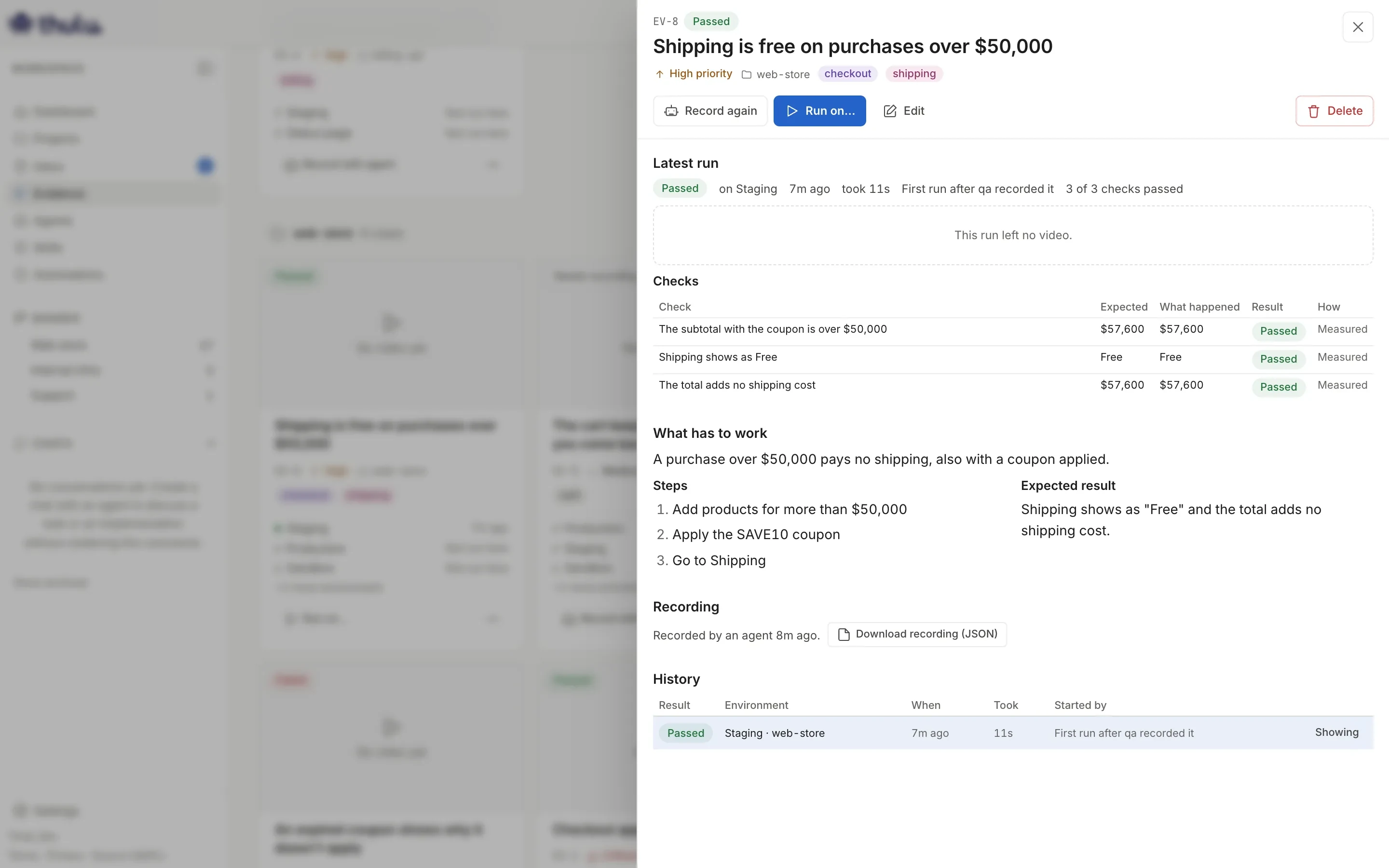
The first run of EV-8, without an agent: "First run after qa recorded it" and the 3 measured checks in green.
Review a case and why it failed
Section titled “Review a case and why it failed”Click a card to open the case. At the top are “Record again”, “Run on…”, “Edit” and “Delete”. Under “Latest run” you pick the environment with the chips on the right (“All”, “Production”, “Staging”…): you see the video with a chapter per step, when it ran, how long it took and who started it.
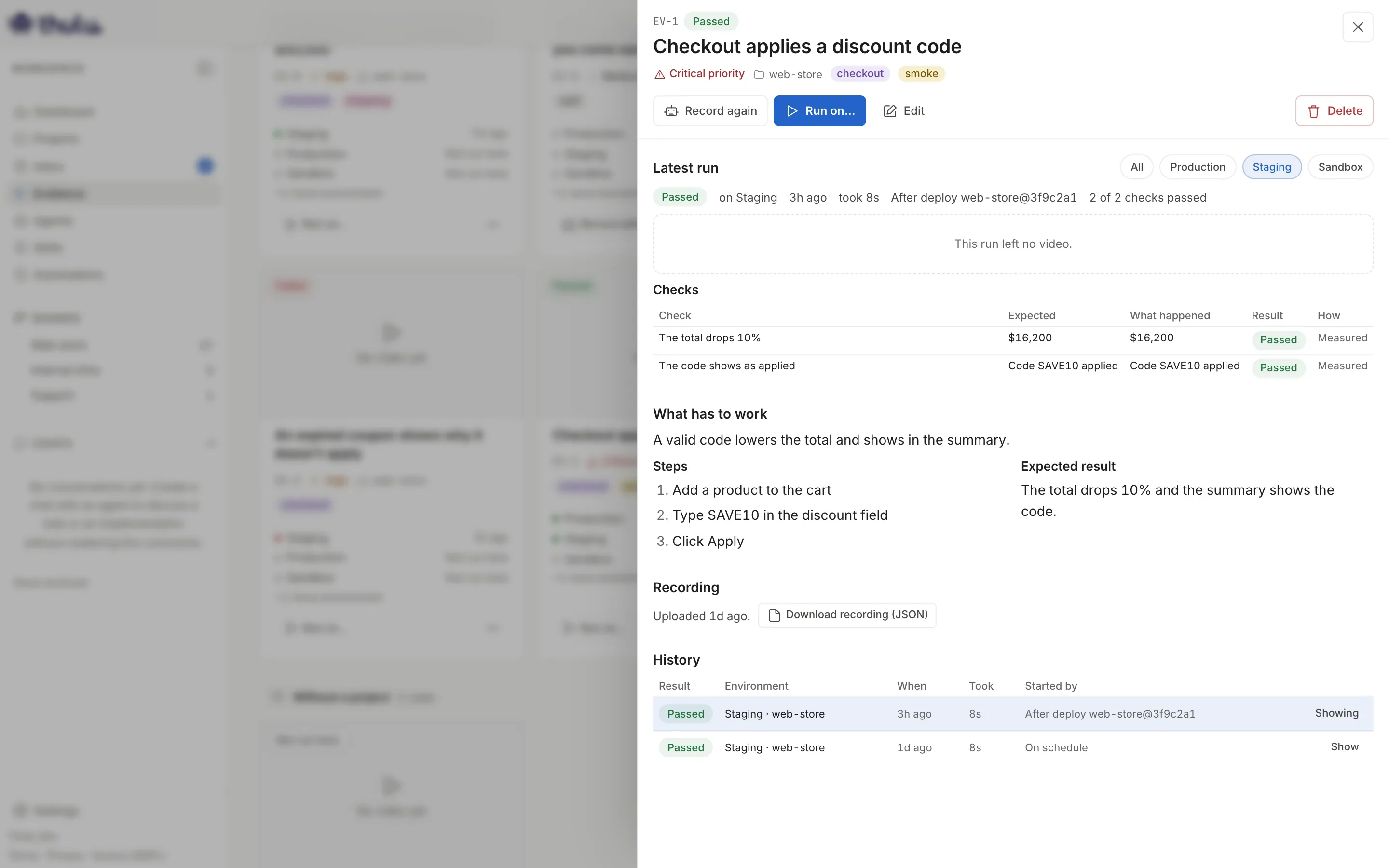
Further down, “Checks” lists each verification with “Expected”, “What happened”, “Result” and “How” (“Measured” when the run measured it on the page). A case that failed adds “What went wrong” with the step that stopped, the annotated screenshots and the “Full report”. “History” shows the earlier runs on the chosen environment; “Show” opens any of them.
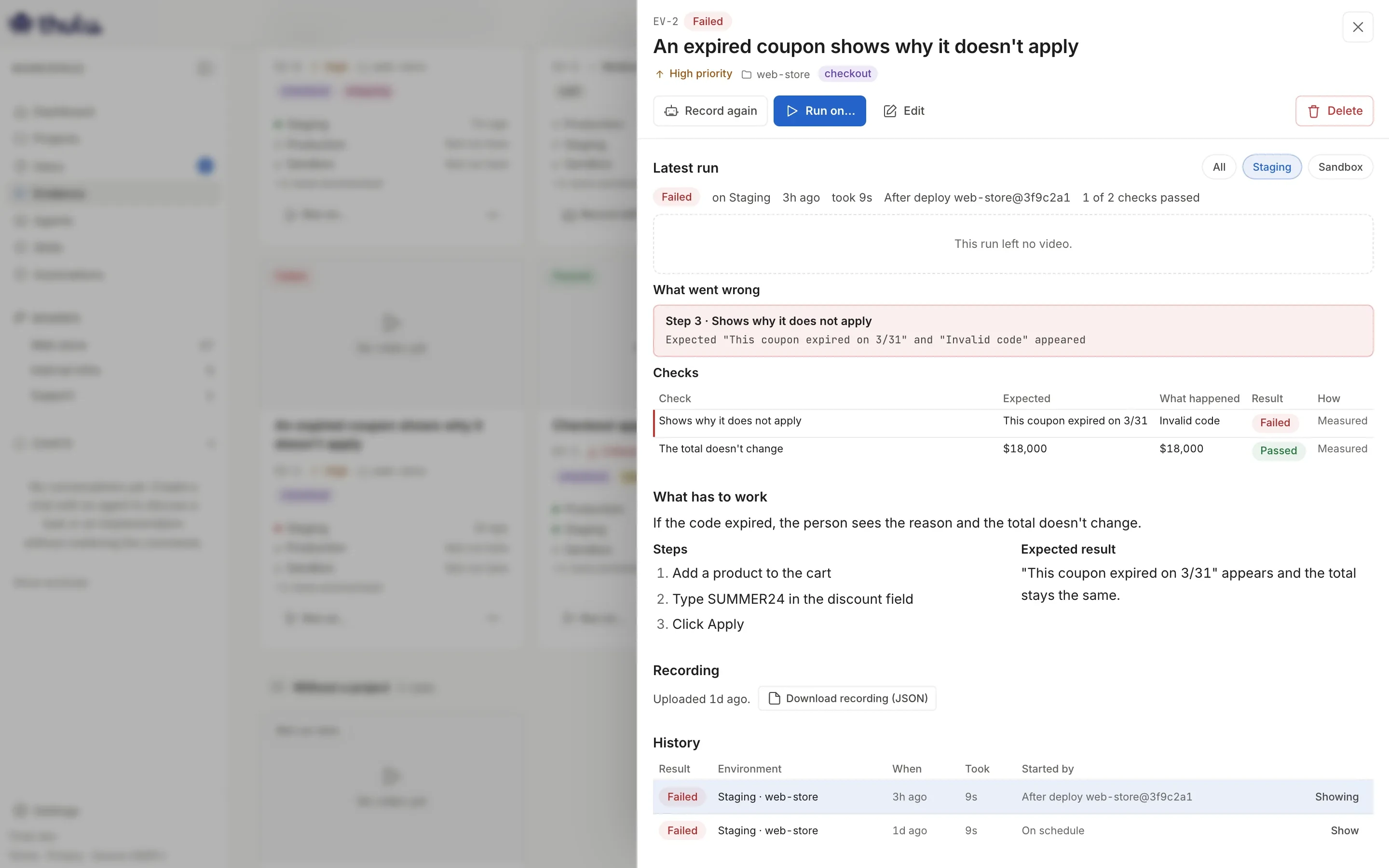
If the app changes and the recording goes stale, click “Record again”: the agent records again and replaces the previous one. “Download recording (JSON)” downloads the script as it runs.
Run by hand
Section titled “Run by hand”There are three buttons and all three open the same “Run on an environment” modal:
| Button | Where | What it runs |
|---|---|---|
| “Run on…” | On a case or in its ⋯ menu | That case. |
| “Run all on…” | Under “Cases” and under “Runs” | The recorded cases that the “Cases” list shows, with the filters you have set. Under “Runs”, with an environment chosen in the filter, every recorded case of that environment. |
| “Run all here” | On an environment’s card | Every recorded case that runs on that environment. |
| “Run on a branch” | On the Sandbox’s card | Every recorded case of the project, on the branch you choose. |
The modal groups environments by project and shows only the ones that can run those cases. It does not preselect production unless it is the only possible environment. At the top it explains what will happen: “Runs the 4 recorded cases in the list. 2 recorded cases in the list don’t run on this environment and stay out. 2 cases still need recording and are skipped.”
Run on a branch with the Sandbox
Section titled “Run on a branch with the Sandbox”Choose “Sandbox” under the project: the “Branch” field appears, with the project’s default branch. Thulu pulls that branch, starts it with the init script, runs the cases against that copy and deletes it when it ends. While it starts, the batch shows what it is doing: “Getting a machine”, “Getting the code”, “Running the init script”, “Starting the app”.
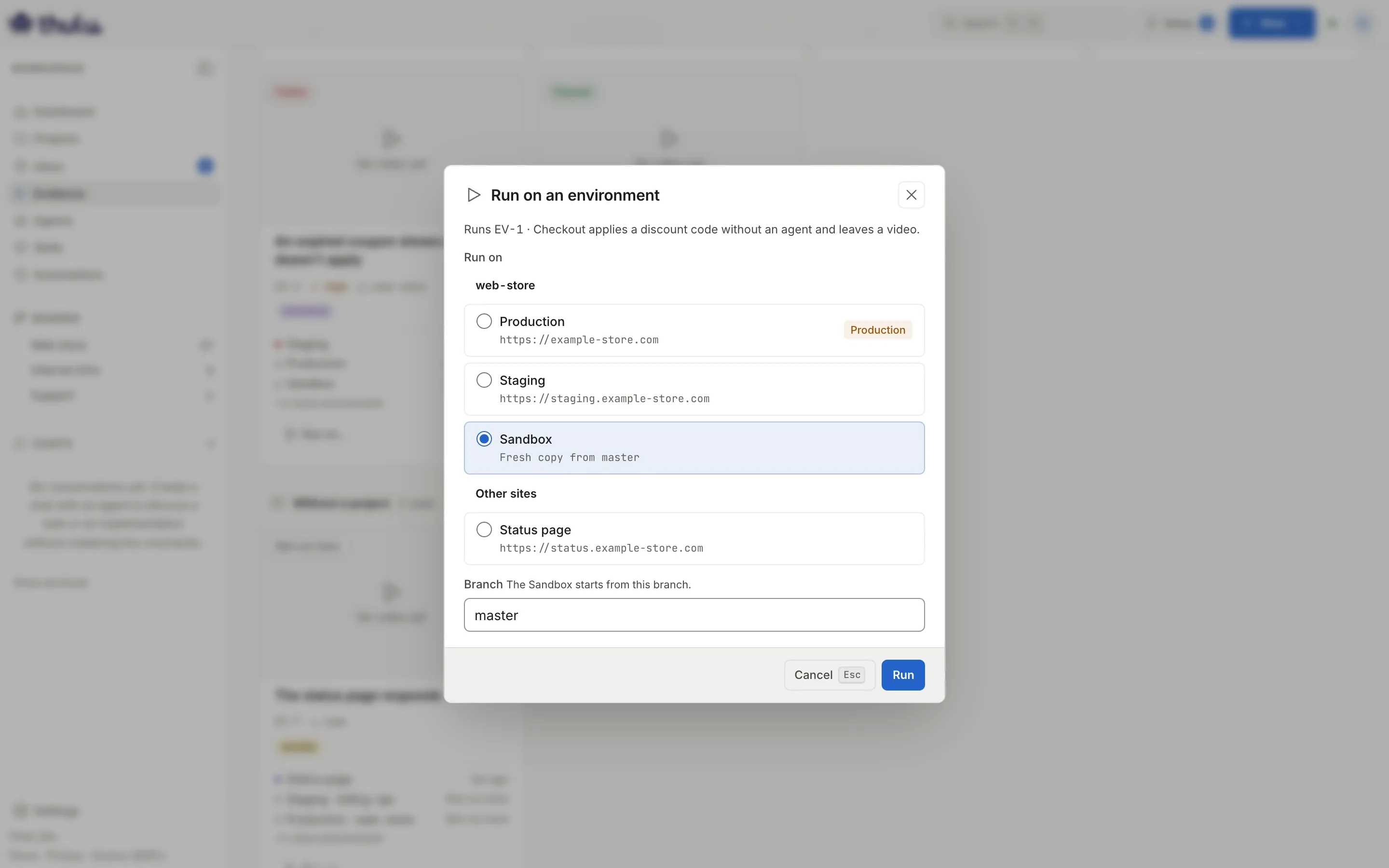
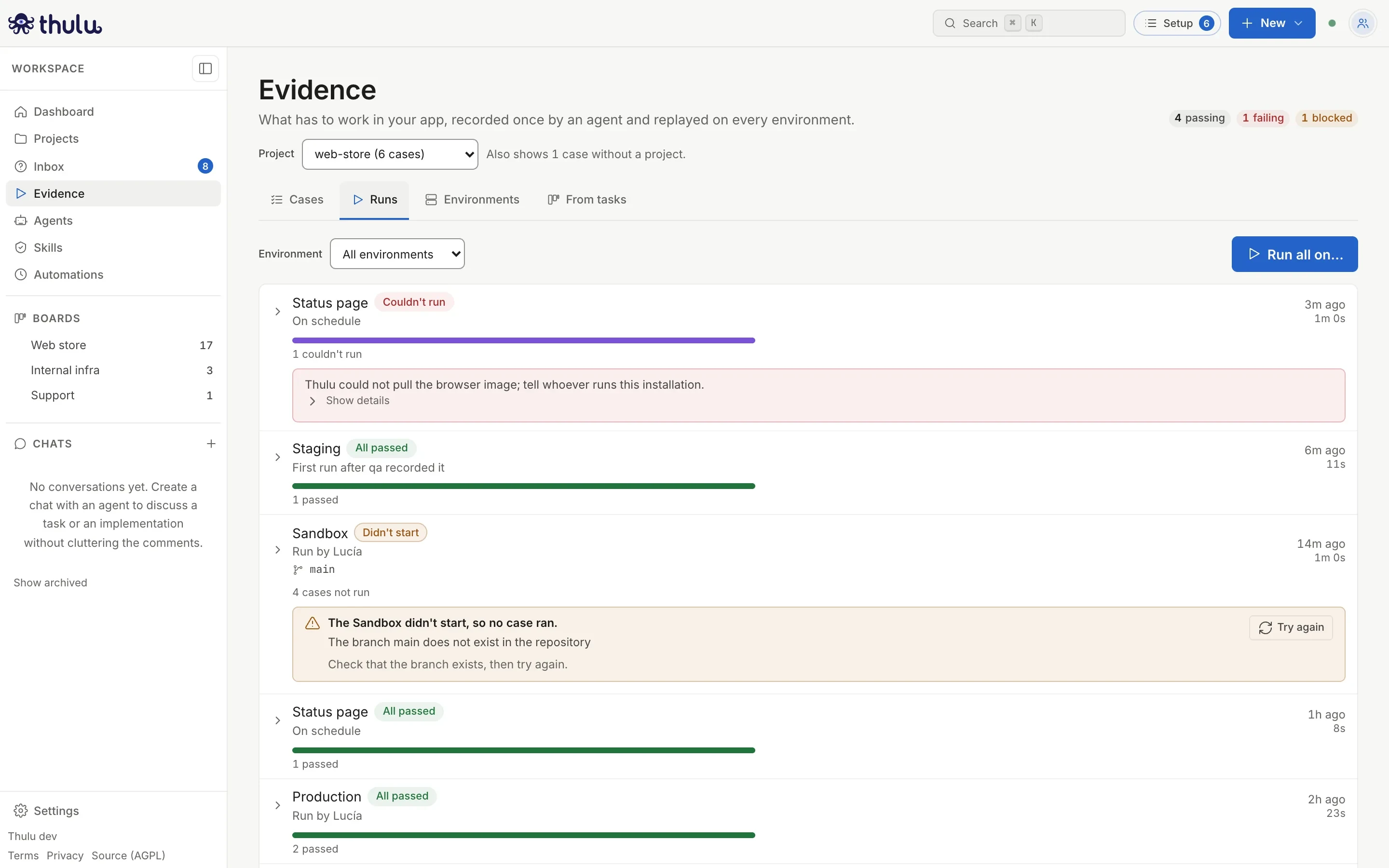
If the Sandbox does not start, the batch says “Didn’t start” and no case counts as failed: the cases stay “Not run yet” and the card explains the cause (“The branch main does not exist in the repository”) with “Try again”. If the problem is in the init script, it offers “Show what the init script printed”.
The Runs tab
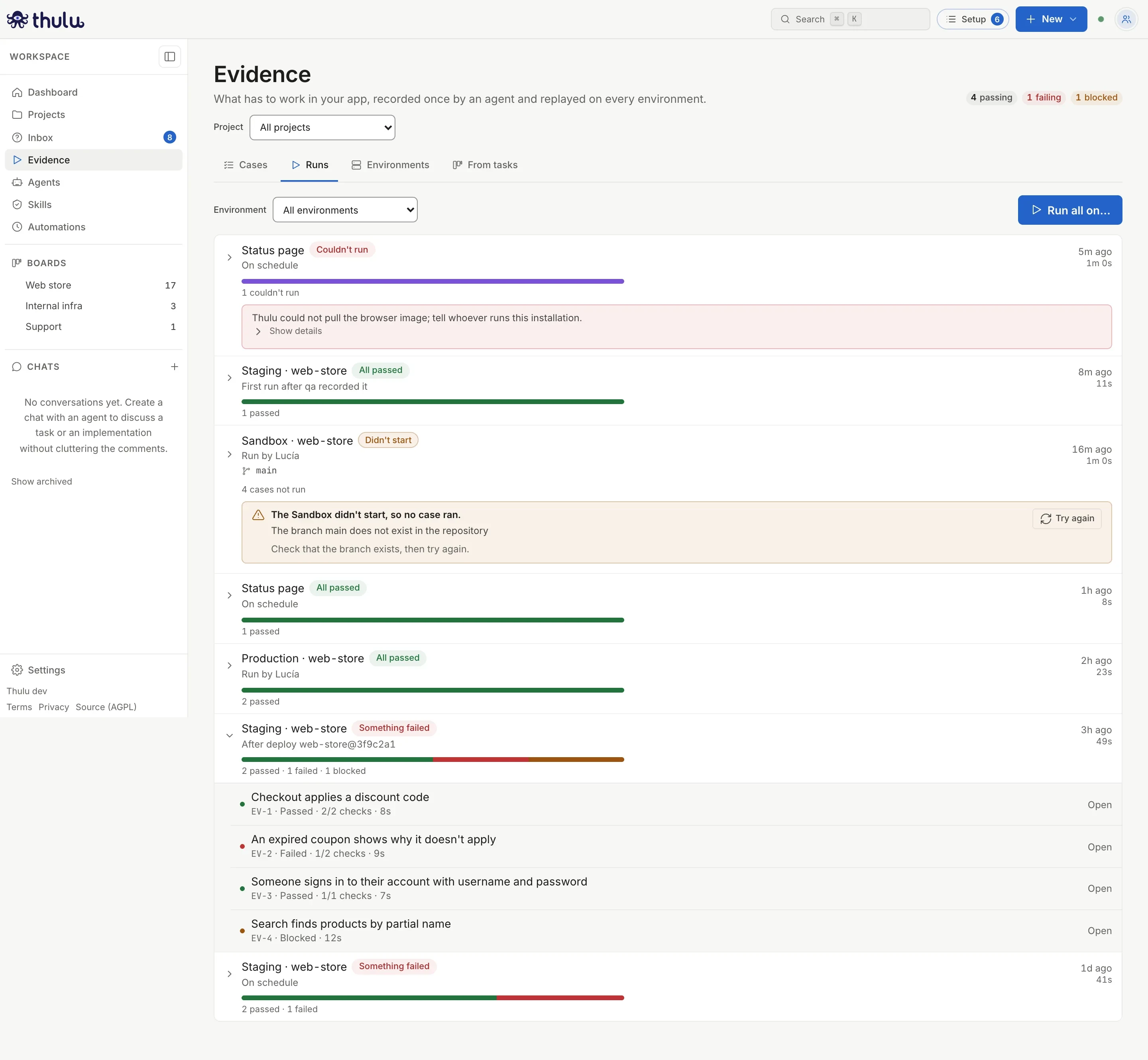
Section titled “The Runs tab”Each row is a batch: the environment, who or what started it (“On schedule”, “After deploy acme/web-store@3f9c2a1 · staging”, “Run by…”, “From CI”, “First run after … recorded it”), a bar with what passed, failed or was blocked, when, and how long it took. It updates live and filters by “Environment”. A batch that is still running can be canceled with “Cancel”: the cases that have not started are canceled and the one running finishes.
Click a batch to see its runs, each with “Watch” or “Open”, which takes you to the case on that run.
When the runner does not start or is cut off, the batch gives the cause in words (“Thulu could not pull the browser image; tell whoever runs this installation.”) and leaves the technical error under “Show details”.
Environments
Section titled “Environments”The “Environments” tab groups environments by project, each with its Sandbox, and “Other sites” at the end. Each card says when it runs by itself, how many test logins it has and how the last run went.
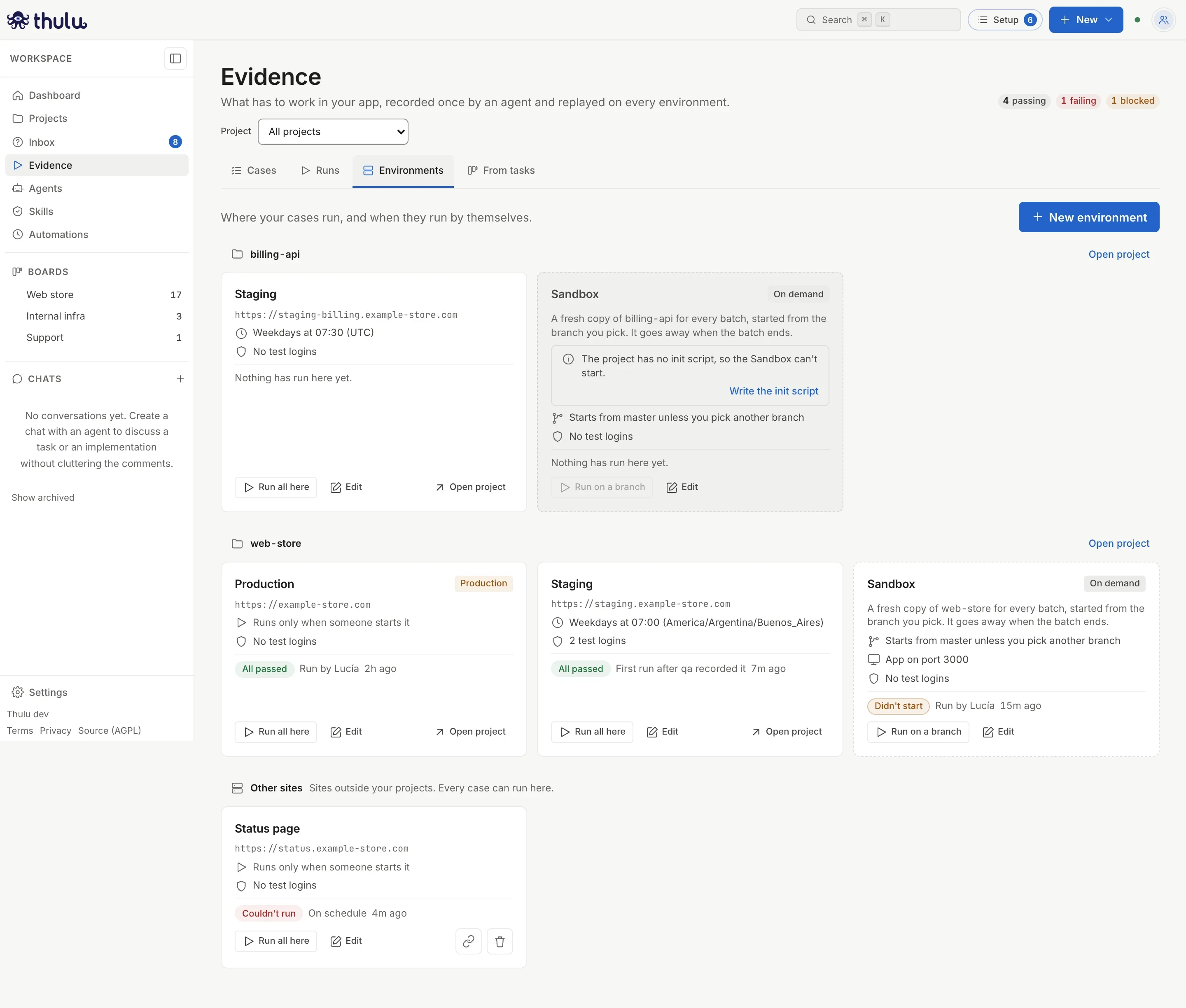
- A project environment is deleted from the project page, not from here. The production flag is also changed there.
- On the Sandbox you only edit the other sites it may open and the test logins; the rest comes from the init script.
- An “Another site” can be deleted (the trash can) or moved to a project environment (the link icon, “Move to a project”): it keeps its runs, logins and schedule, but the destination has to be a project environment that has not run anything yet.
Trigger from your CI
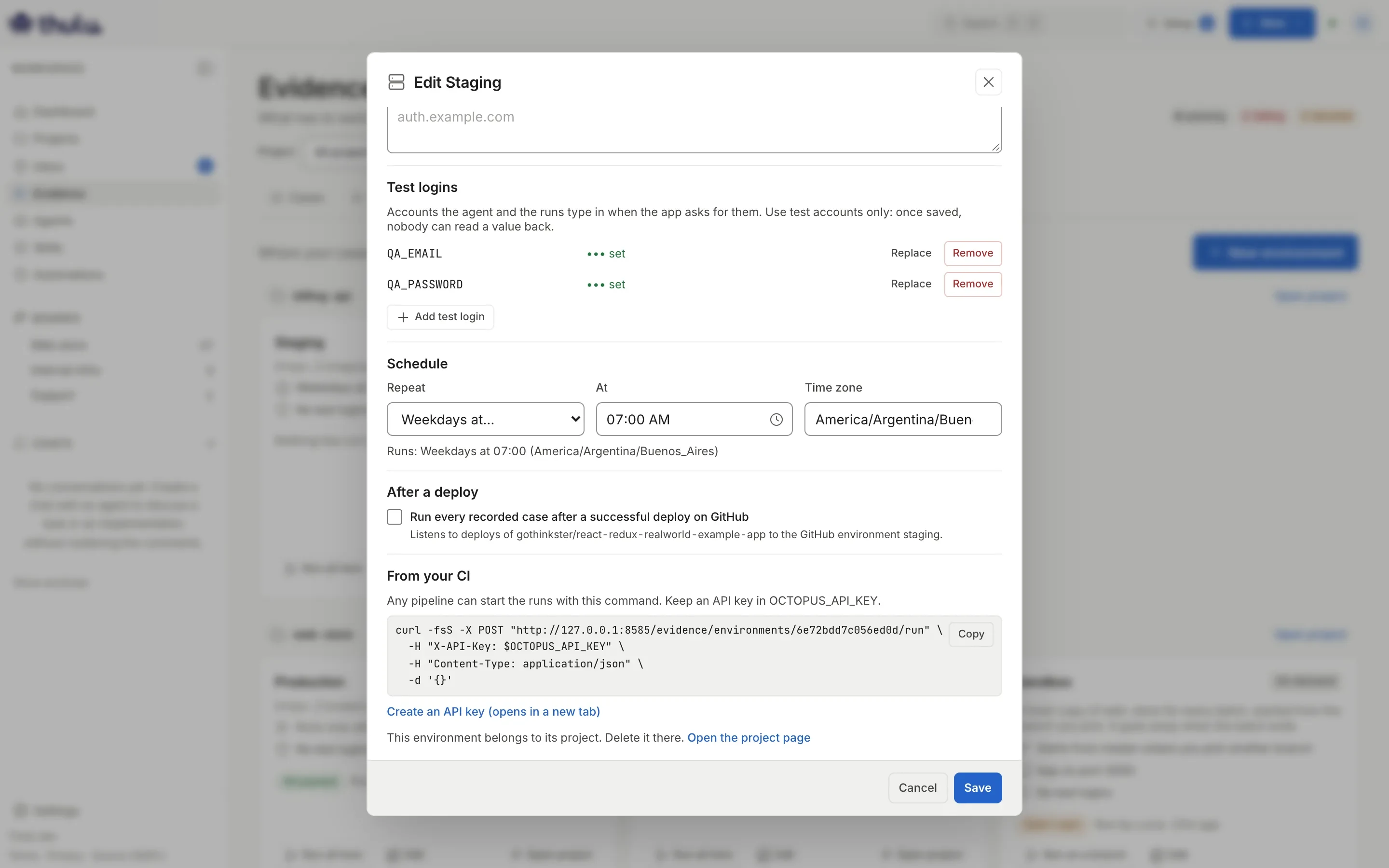
Section titled “Trigger from your CI”If your team deploys without GitHub deployments, the pipeline can start the runs. The “From your CI” section of the environment form shows a curl command with its copy button. When you create the environment, the command has ENVIRONMENT_ID in place of the id; when you edit it once saved, the real id. Store an API key in your CI’s OCTOPUS_API_KEY variable. “Create an API key” opens “Settings” → “API” in another tab; the “CI” preset is enough, with the developer role or higher (see Settings). The command starts a batch with every recorded case that runs on that environment, and the “Runs” tab shows it as “From CI”.
What each role can do
Section titled “What each role can do”| Action | Viewer | Developer | Admin and owner |
|---|---|---|---|
| See cases, runs, videos and environments | Yes | Yes | Yes |
| Create, edit and delete cases; record; run (Sandbox included) | No | Yes | Yes |
| Create an environment or edit its testing part, if it is not production | No | Yes | Yes |
| Create or edit a production environment and its logins | No | No | Yes |
| Delete an “Another site” or move it to a project | No | No | Yes |
Buttons your role does not allow appear disabled with the reason on hover (“Only workspace admins can change production.”). A viewer also sees “Your role can look but not change anything here.”
Filters and projects
Section titled “Filters and projects”With two or more projects, the “Project” selector appears at the top. When you pick one, cases, runs and environments narrow to that project, plus the cases with no project (“Also shows 1 case without a project.”). The choice is saved in your browser. Under “Cases” you also filter by status (the chips with the count), “Environment” (shows each case’s result on that environment), “Priority”, “Tag” (you can add several: it shows the cases that have all of them) and “Search” by key, title or text. “Order” puts the newest first, or sorts by priority or status, and “Cards” or “List” changes the layout. “Run all on…” runs exactly what the filters leave. The header counts the ones that are “failing” and the “blocked” separately.
Common problems
Section titled “Common problems”- A case does not appear in “Run on…” for an environment: the environment belongs to another project. A project’s cases run only on its environments, its Sandbox and the other sites.
- A recording stops passing after a design change: the case ends up “Blocked” because it does not find an element. Click “Record again”.
- A case whose flow changes data (creating an order, paying) is recorded with those steps marked, and the replay rejects it with “Couldn’t run” so the change is not repeated on every run.
- Running after a deploy triggers nothing: the GitHub environment has to be named like the environment’s short name, and the installation’s GitHub App has to be subscribed to the deployment event (see Git and GitHub). It also works if the GitHub environment is named like the environment’s “Name”, regardless of case. A GitHub Actions workflow without a deployment does not trigger; the CI command is for that.