

Chat
A chat is a conversation with an agent that stays saved in the “Chats” section of the sidebar. Use it to ask questions, think through a plan or review something without filling a task with comments. A chat can be standalone or linked to a task, and in that case the agent receives the task’s description and a read-only copy of its code. With “Act for me”, the agent of a standalone chat can create, edit and move tasks on all boards on your behalf for 8 hours.
A chat you open from the sidebar is visible only to you, standalone or linked to a task: it does not appear in anyone else’s list, not even an admin’s or an owner’s, and its link returns “not found” to anyone else. If another person opens a chat with the same agent about the same task, they get one of their own. The task’s “Chat” tab belongs to the whole workspace. When you mention an agent in the task or in a thread, it answers in the task, where everyone reads it, and that conversation does not appear in anyone’s chat list. What a private chat produces is not private: the tasks it creates, the comments and the evidence a recording saves end up where anyone would see them. The audit log records that the chat was opened, not what was said in it.
Recommended flow: open a chat and talk
Section titled “Recommended flow: open a chat and talk”-
In the sidebar, in the “Chats” section, click “+” (“New chat”). It is also under the “New” button at the top right, “Chat” option.
-
Choose the “Agent”. The list shows only the agents that have the Chat stage, and marks the ones with no chat prompt or no model credential.
-
If the conversation is about a task, pick it in “Linked task (optional)”. The list has the tasks that are not in a final stage. If you pick none, the chat stays standalone.
-
Enter a “Title (optional)”. Without a title, the chat is named after the agent, or “Agent · task title” if you picked a task.
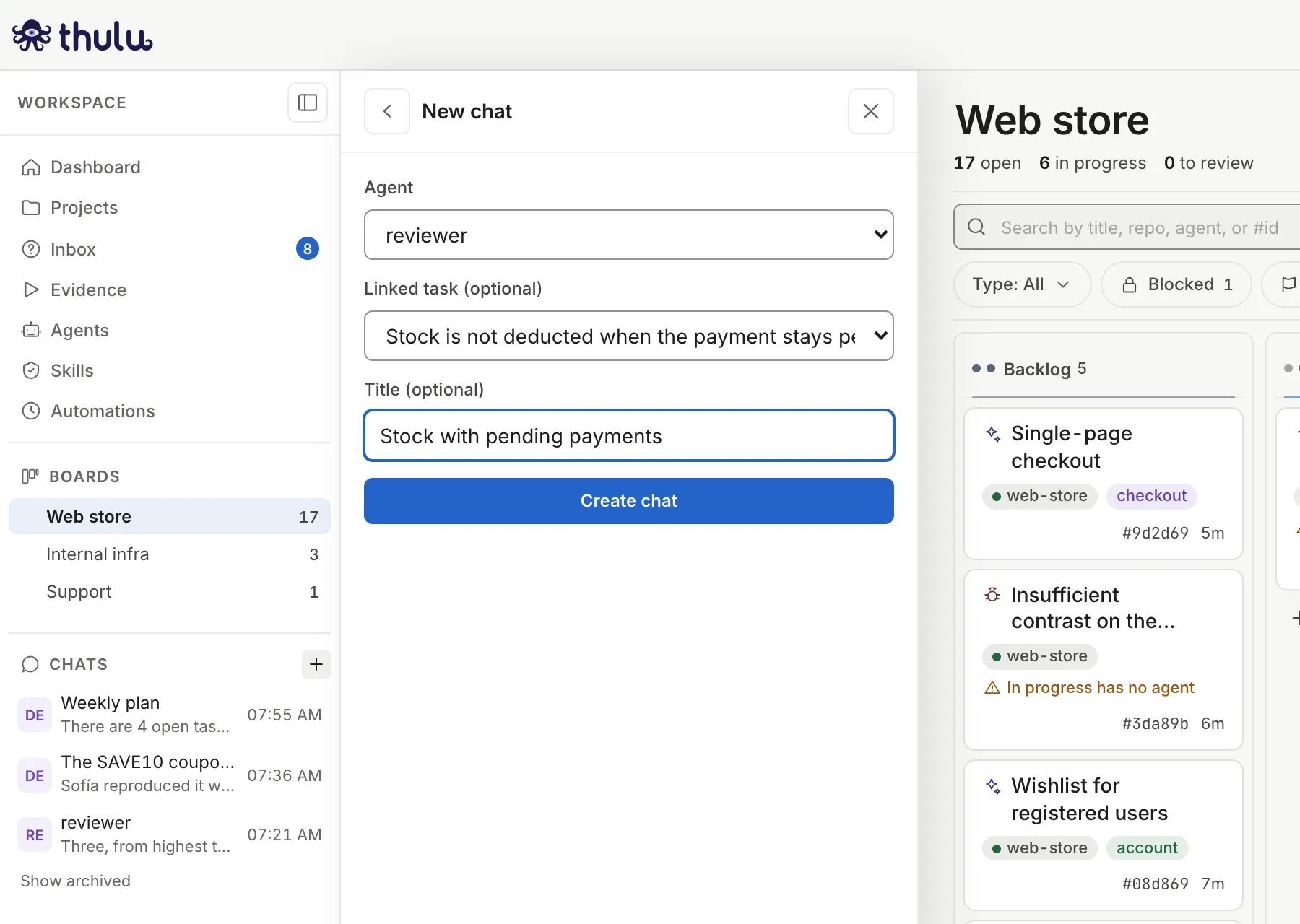
The New chat form: a required agent, optional task and title. -
Click “Create chat”. The panel switches to the conversation and the chat appears first in the list. If the agent already had a chat about that task, Thulu opens that one and notes “@reviewer already had a chat about “…”. You are in that one.”
-
Type in “Write to the agent…” and send with Enter (Shift+Enter adds a line). While the agent replies you see three dots; the reply arrives on its own, even if you change page.
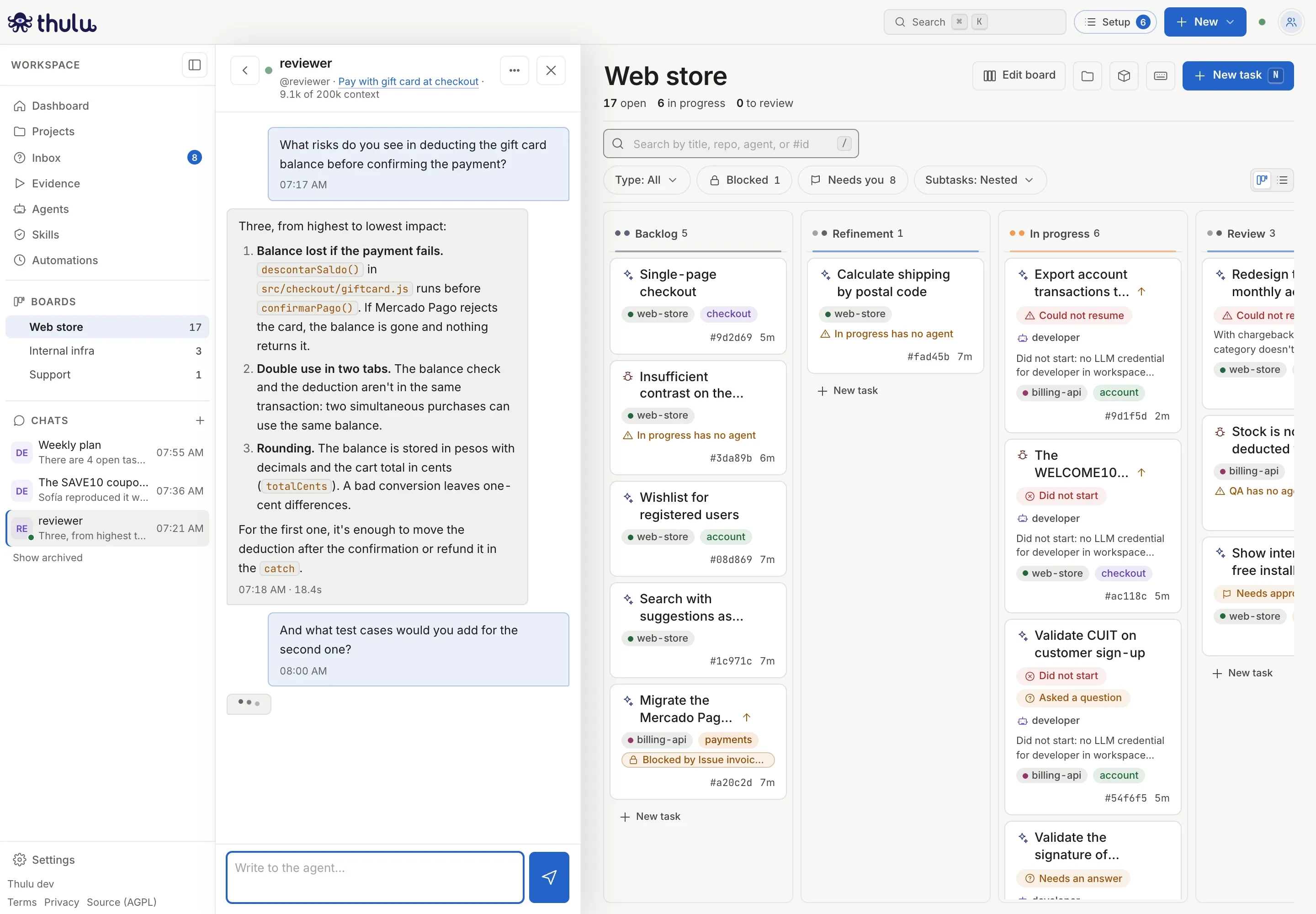
The reviewer answers with what it read in the task's code. The three dots and the green dot say it is answering the second question; the subtitle shows the agent, the task and the context used (9.1k of 200k).
The header shows a dot that turns green while the agent replies, the title (click to rename it) and the subtitle with the agent, the task title if there is one (a click opens it) and the context used. Below each reply you see the time and how long it took.
Each chat remembers the conversation between messages. By default Thulu keeps up to 5 chats with their agent running on the server and shuts down the ones that go 30 minutes without messages; the next message brings it back up and the conversation goes on where it was. A turn can last up to 5 minutes. The three values are not in the UI: on a self-hosted installation the operator changes them through the settings API (chat.max_containers, chat.idle_evict_seconds, chat.turn_timeout_seconds). How many chats are running shows in Infrastructure, under “Chat containers”.
Other ways a chat appears
Section titled “Other ways a chat appears”Besides the “+”, Thulu opens chats on its own in two situations. All three kinds live in the same list.
| How it opens | Name in the list | What the agent receives | Where the reply goes |
|---|---|---|---|
| “+” or “New” → “Chat” | The title you set, the agent, or “Agent · task title” | If you picked a task, its description and its code (read-only) | To the chat |
@agent in a task’s “Chat” tab |
“Agent · task title” | The task’s description and code | To the chat |
@agent in a comment thread |
“Agent · task title · thread” | The task and what was said in the thread since its last reply | To the thread, and a copy stays in the chat |
Mention an agent in a task’s Chat tab
Section titled “Mention an agent in a task’s Chat tab”-
Open the task and go to the “Chat” tab.
-
Write a message that names the agent with
@, for example@reviewer which test cases would we need?, and click “Send”. -
Below your message you see “@reviewer answers in its chat →”. Click to open the chat in the sidebar.
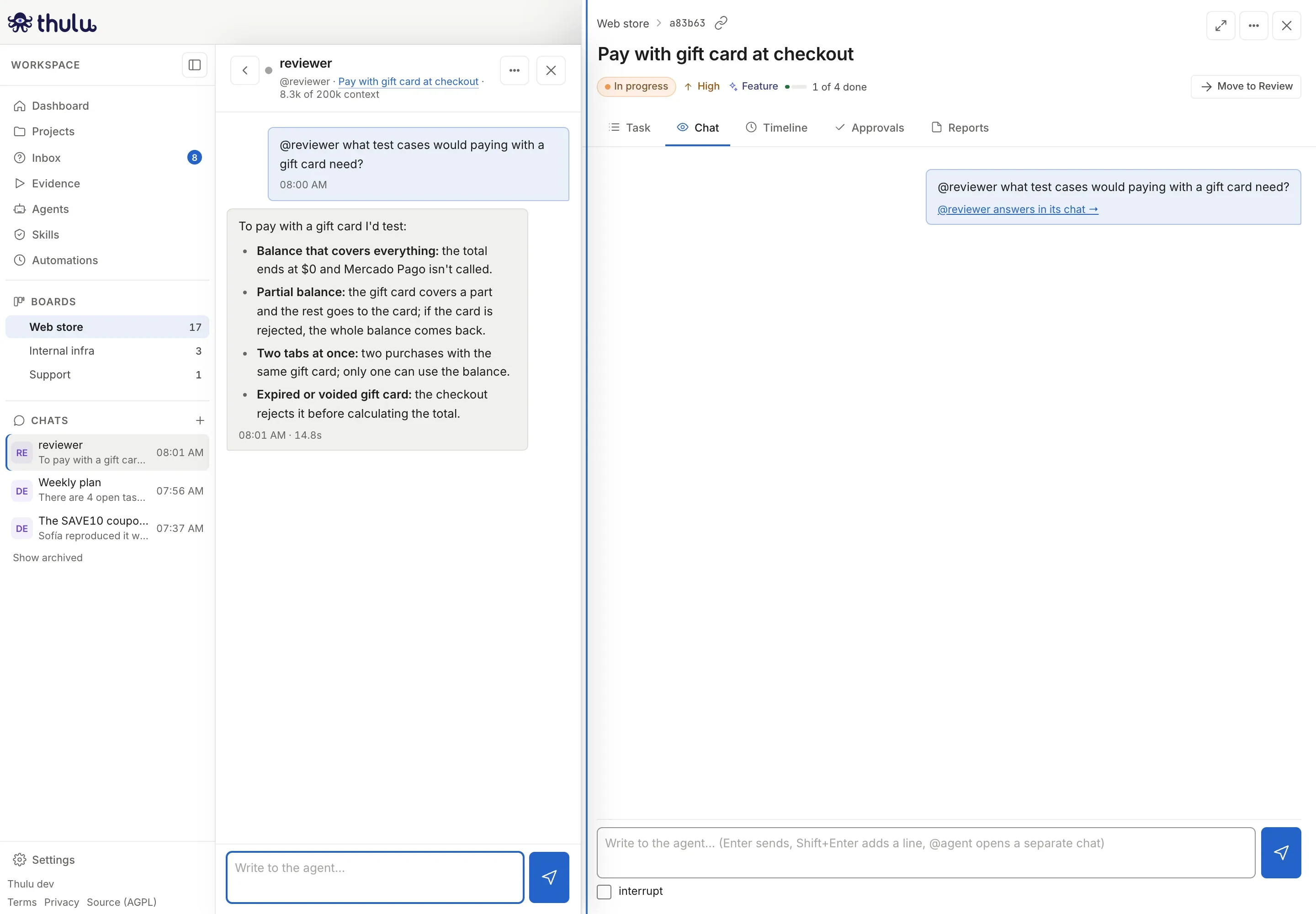
The mention opens a chat with the agent about that task. The task panel shifts to make room for it.
Later mentions of the same agent in the same task go to that same chat. If you archive the chat, the next mention opens a new one. On screens narrower than 1100 px, opening a task closes the side chat.
The mention turns into a comment and the agent answers in a thread in two cases: if the agent does not have the “Chat” stage (it notes “has no chat; I asked it through a mention and it answers in the comments”) or if its chat cannot take the message at that moment, for example because it is still answering another one (“Could not open the chat of …”). See Conversation and threads.
Ask an agent from a thread
Section titled “Ask an agent from a thread”If in a comment you mention an agent that has the “Chat” stage and not the “Mention” stage, the agent answers in the thread from a chat of its own for that thread. Each thread has its own, so what was discussed in one does not show up in another.
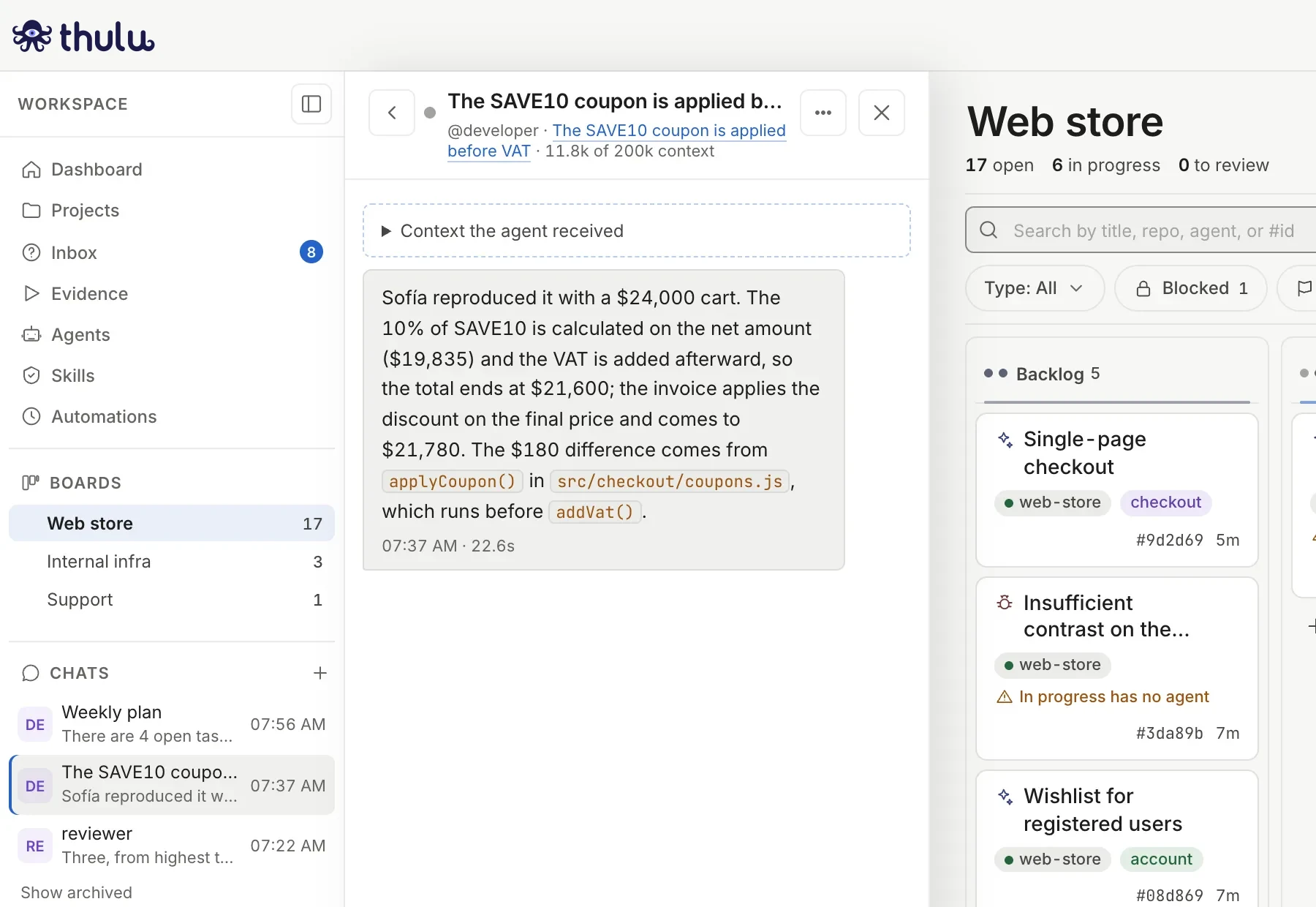
That chat lets you see what the agent received: click “Context the agent received” to expand it. What you write directly there is answered in the chat, without being published in the thread, and the composer says so (“What you write here stays in this chat; it does not go back to the task’s thread.”). To continue the thread’s conversation, reply in the thread.
Act for me
Section titled “Act for me”With “Act for me” on, the agent of a chat can create, edit and move tasks on all boards of the workspace, with your role as the limit (an admin or an owner delegates as a developer). It does not touch boards, stages, automations, projects, agents, credentials or settings, does not decide approvals and does not resolve threads. Everything it does goes in the audit log under the agent’s name, delegated by you.
-
Open a standalone chat that you created. Chats linked to a task or a thread cannot be delegated, because they receive messages from other people.
-
Click “⋯” in the chat header. The first option is “Act for me”, with the text “Handles the boards’ tasks on your behalf”.
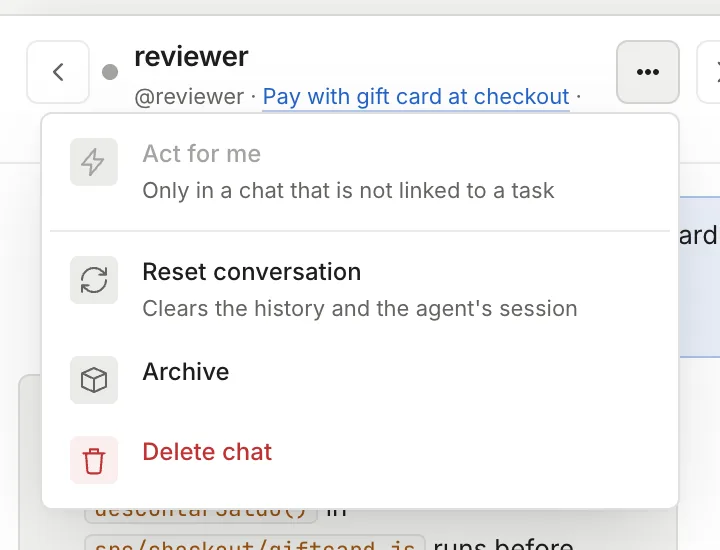
The chat menu. In a chat linked to a task, Act for me appears gray with "Only in a chat that is not linked to a task". -
Click “Act for me”. A modal explains what the agent will be able to do and that it turns off by itself after 8 hours. Click “Turn on”.
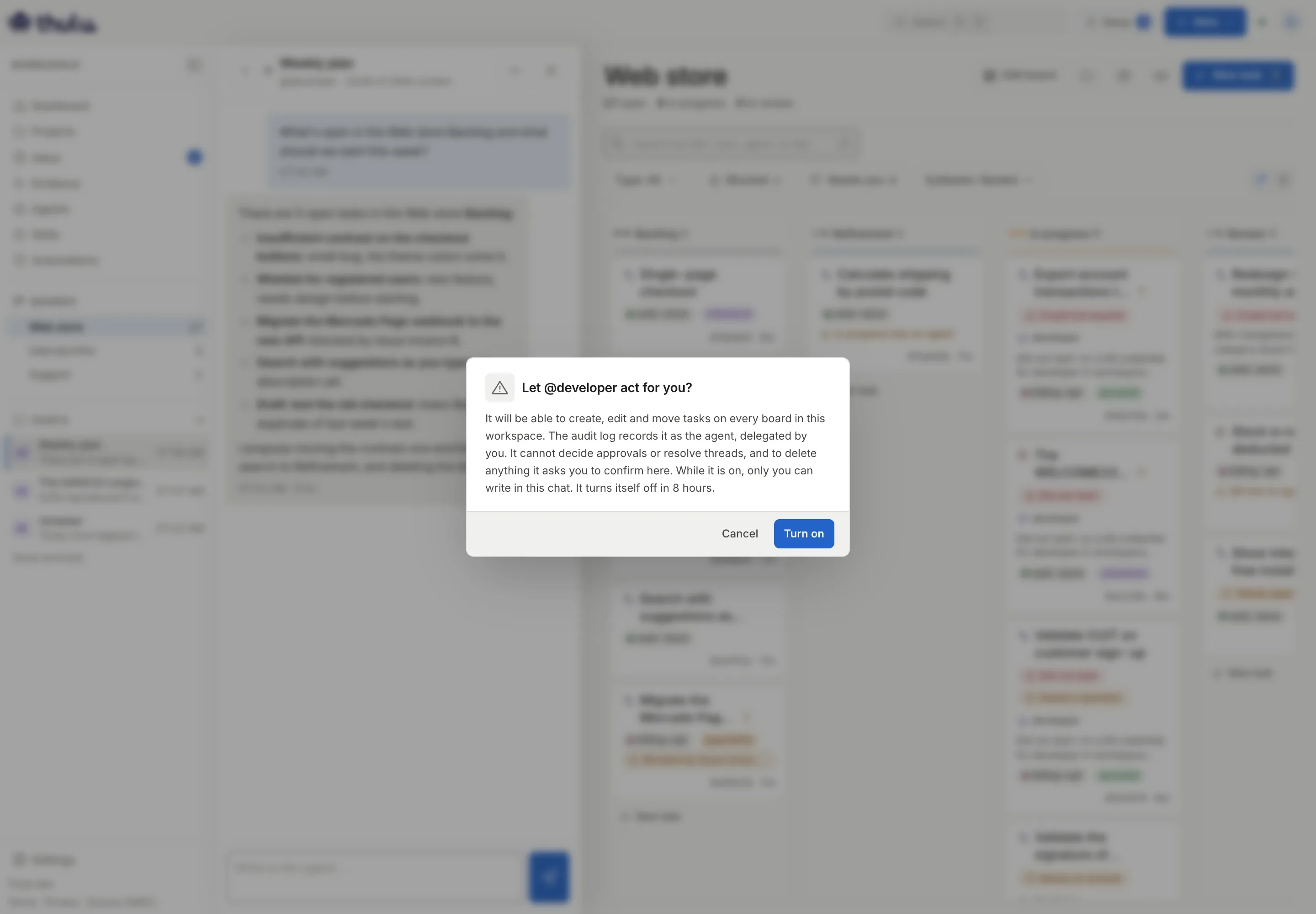
The confirmation before delegating. -
The header shows “Acts for you until …” with the time it turns off, 8 hours after you enabled it. Ask the agent for what you need, for example “Move contrast and search to Refinement”.
While the chat is delegated, only you can write in it: if another person sends a message they get “this chat acts for …; only they can write in it”. If the agent is answering when you turn it on, Thulu rejects it with “the agent is answering; turn this on once it finishes”.
Confirm what the agent wants to delete
Section titled “Confirm what the agent wants to delete”The agent deletes nothing on its own. When it tries to delete a task, a comment, an attachment, a dependency or a test case, the request is held and shows up in the chat as an “@agent asks for confirmation” card.
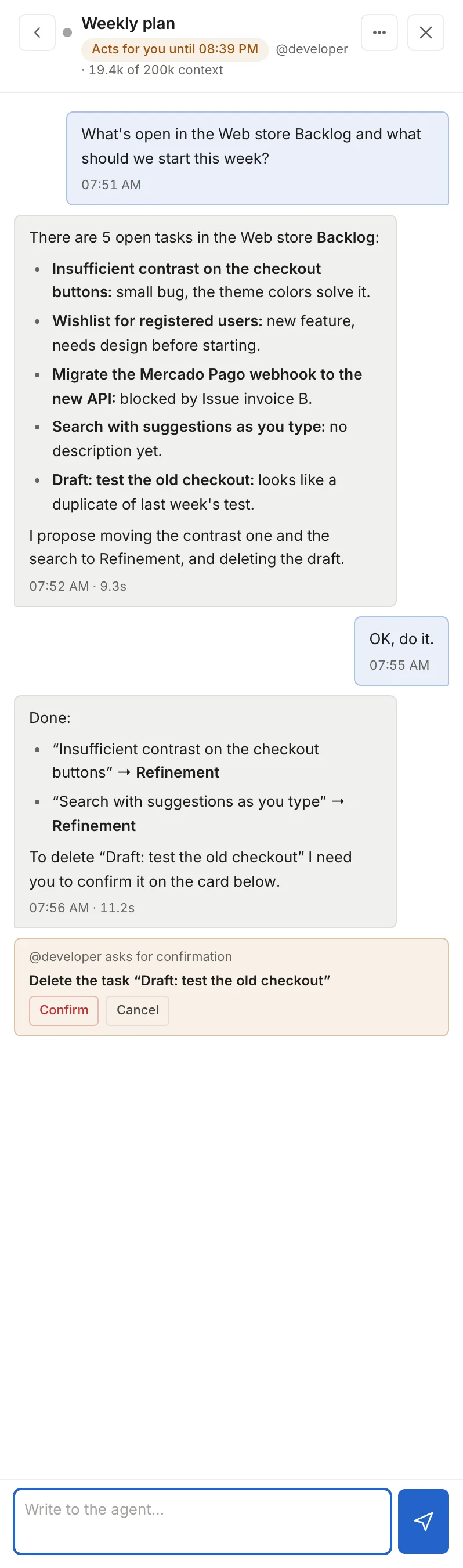
“Confirm” runs the deletion with your role, not the agent’s: if your role is not enough (deleting a task takes admin), the card ends as “Your role does not allow deleting this task (it takes admin).” “Cancel” discards it. Only the person who delegated can confirm, and only from their own session.
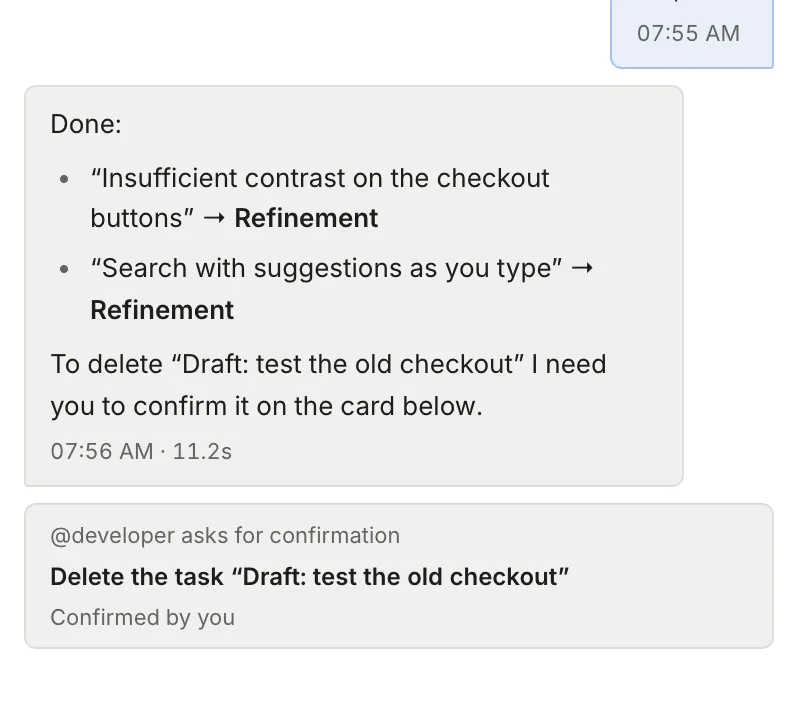
The agent does not learn the result in that turn. If you want it to continue from there, tell it in the chat.
With delegation on, the agent can also open pull requests and, if its Chat stage grants those tools, trigger GitHub Actions runs on the repos of the workspace’s projects. This works only if the installation uses the GitHub App. Merging a PR and approving a deploy wait for your confirmation the same way. The exact permissions are in Git and GitHub.
How it turns off
Section titled “How it turns off”- By clicking “Act for me” again in the menu (“Acts for … Click to turn it off”). The person who delegated or a workspace admin can turn it off.
- On its own, after 8 hours.
- By deleting the chat.
- When an owner turns off “Let chats act for the person who opened them”, in Settings → “Team” → “Delegated chats”. That ends all current delegations in the workspace and revokes their keys.
When it turns off, deletions that were still pending change to “Canceled: the delegation ended” and the next message brings the agent back up with the permissions of an ordinary chat.
Menu options
Section titled “Menu options”| Option | What it does | Confirms |
|---|---|---|
| “Act for me” | Turns delegation on or off (see above) | Yes, when turning on |
| “Reset conversation” | Clears the history and the agent’s session; the next message starts from zero. If the agent is answering, it says “The agent is replying — wait for it to finish.” | Yes |
| “Archive” | Takes the chat off the list and it accepts no more messages. A notice offers “Undo” for a few seconds; after that you find it under “Show archived”, at the foot of the list, and unarchive it from there | Yes |
| “Delete chat” | Deletes the whole conversation. It cannot be undone | Yes |
The “<” arrow and the “X” close the panel; Escape does the same. When you reload the page, the last open chat opens again.
What the agent can do by chat type
Section titled “What the agent can do by chat type”| Chat | Can read | Can change |
|---|---|---|
| Standalone | What its MCP settings let it read from the workspace | Nothing in Thulu |
| Linked to a task (by hand or by mention) | The task, its code read-only | Only that task |
| Thread | The task and the thread | Only that task; the reply is published in the thread |
| Standalone with “Act for me” | Same as standalone | Any task in the workspace, with your role as the ceiling; deletions with confirmation |
No chat can open other chats, write into a chat or speak in a task’s conversation.
Common problems
Section titled “Common problems”- “The agent is still replying to the previous message.”: each chat handles one message at a time. Wait for the three dots to disappear; your text goes back to the composer.
- The reply arrives as “Agent error: …” and mentions the LLM credential: the workspace has no credential for the agent’s engine. Add it in Settings → “AI engines”; see Credentials and engines.
- “every chat slot on this host is taken …” or “this workspace already has N open chats, its plan’s limit …”: all running chats are answering. Wait a minute and send again.
- “An owner turned off delegated chats in this workspace.”: delegation is turned off in Settings → Team; only an owner can turn it back on.
- You delegated, the agent says it moved tasks and the board did not change: check that its Chat stage has
octopus-apiwith write and the task tools.