

Dashboard and navigation
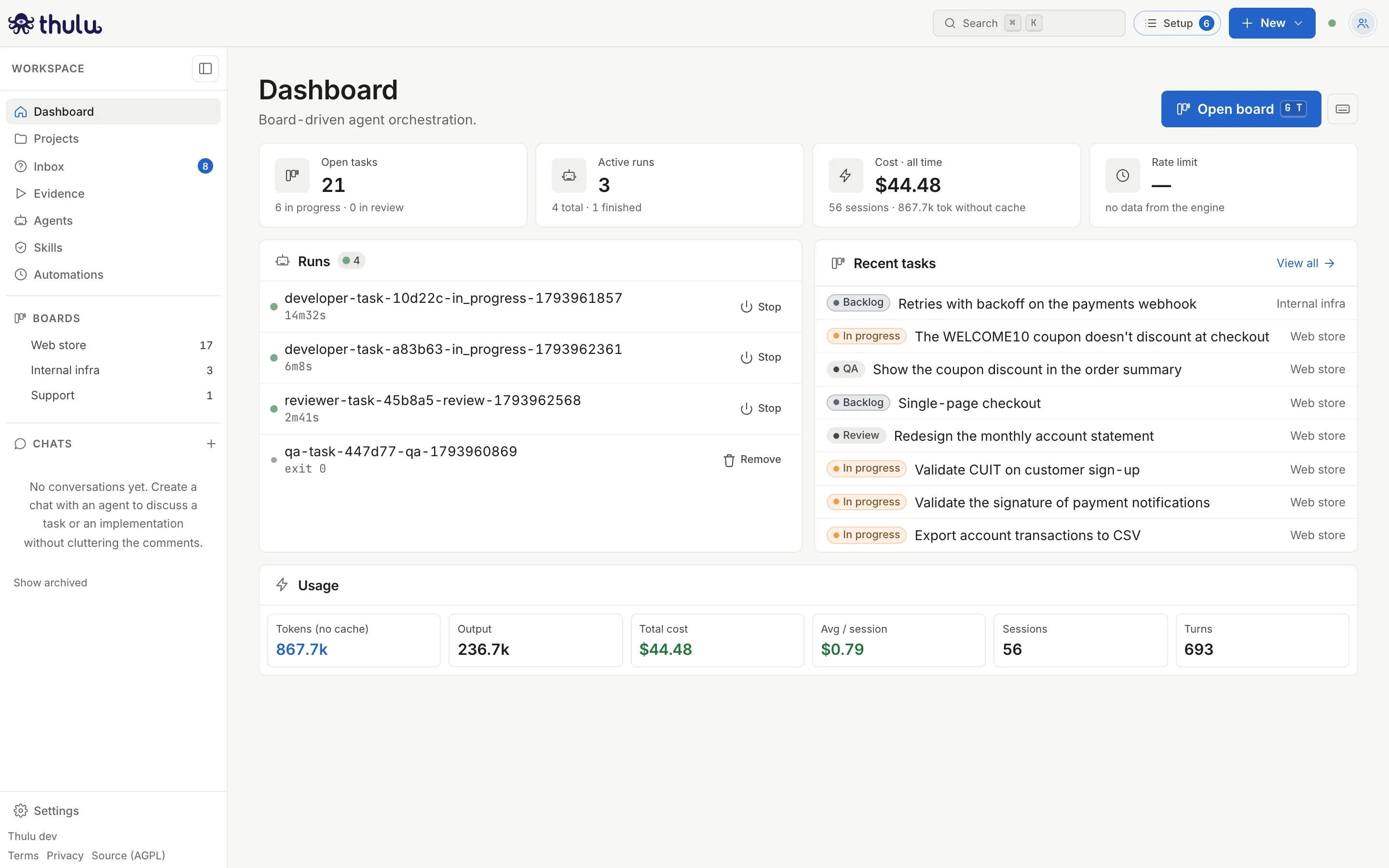
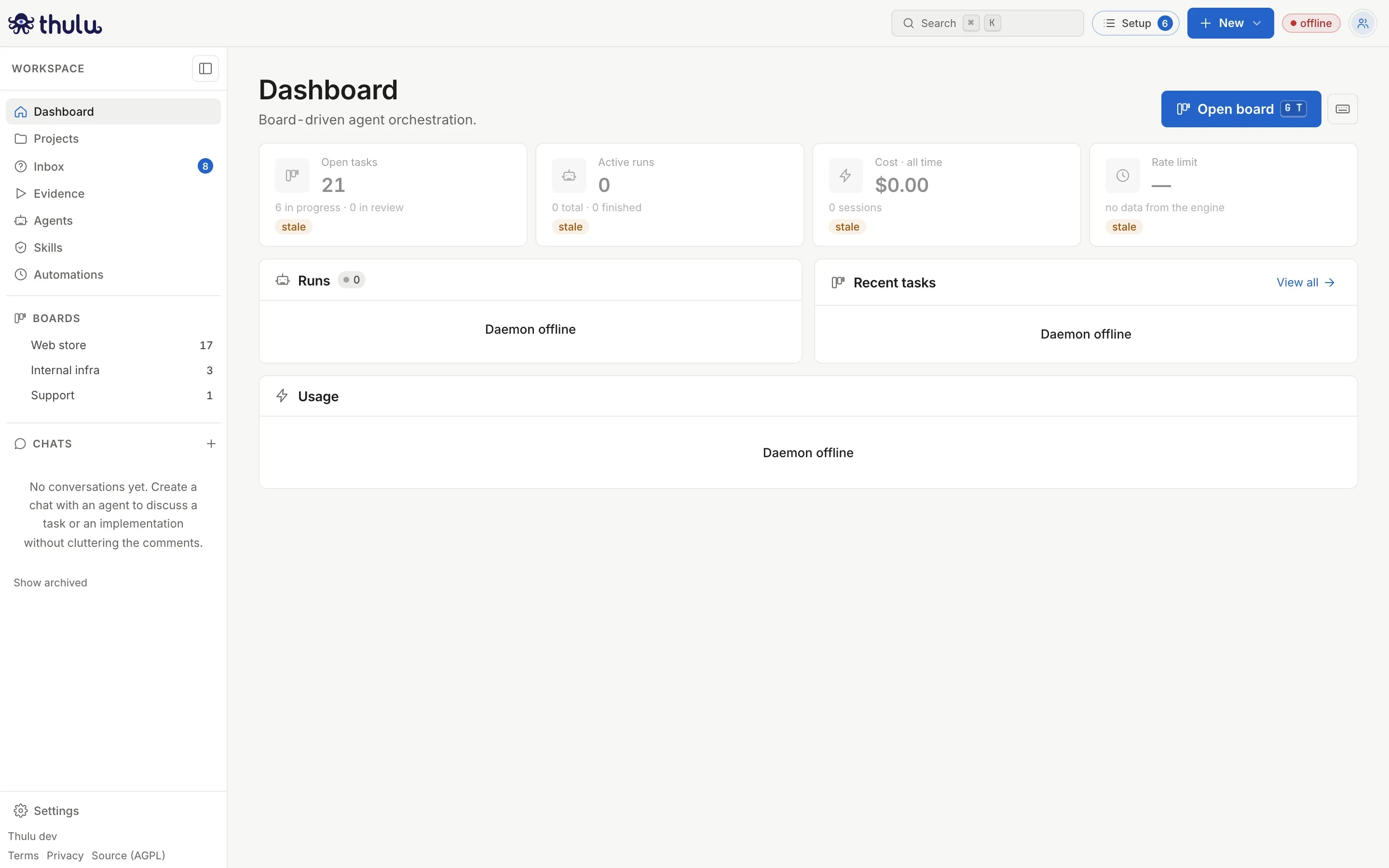
The Dashboard is Thulu’s first screen (route /): it shows how many tasks are still open, which agent runs are active, how much you have spent and which tasks changed last. Around the Dashboard there are two fixed pieces that stay with you on every page: the header at the top and the sidebar on the left. With those three things and a handful of keyboard shortcuts you can reach anywhere in the app.
Recommended tour to get your bearings
Section titled “Recommended tour to get your bearings”-
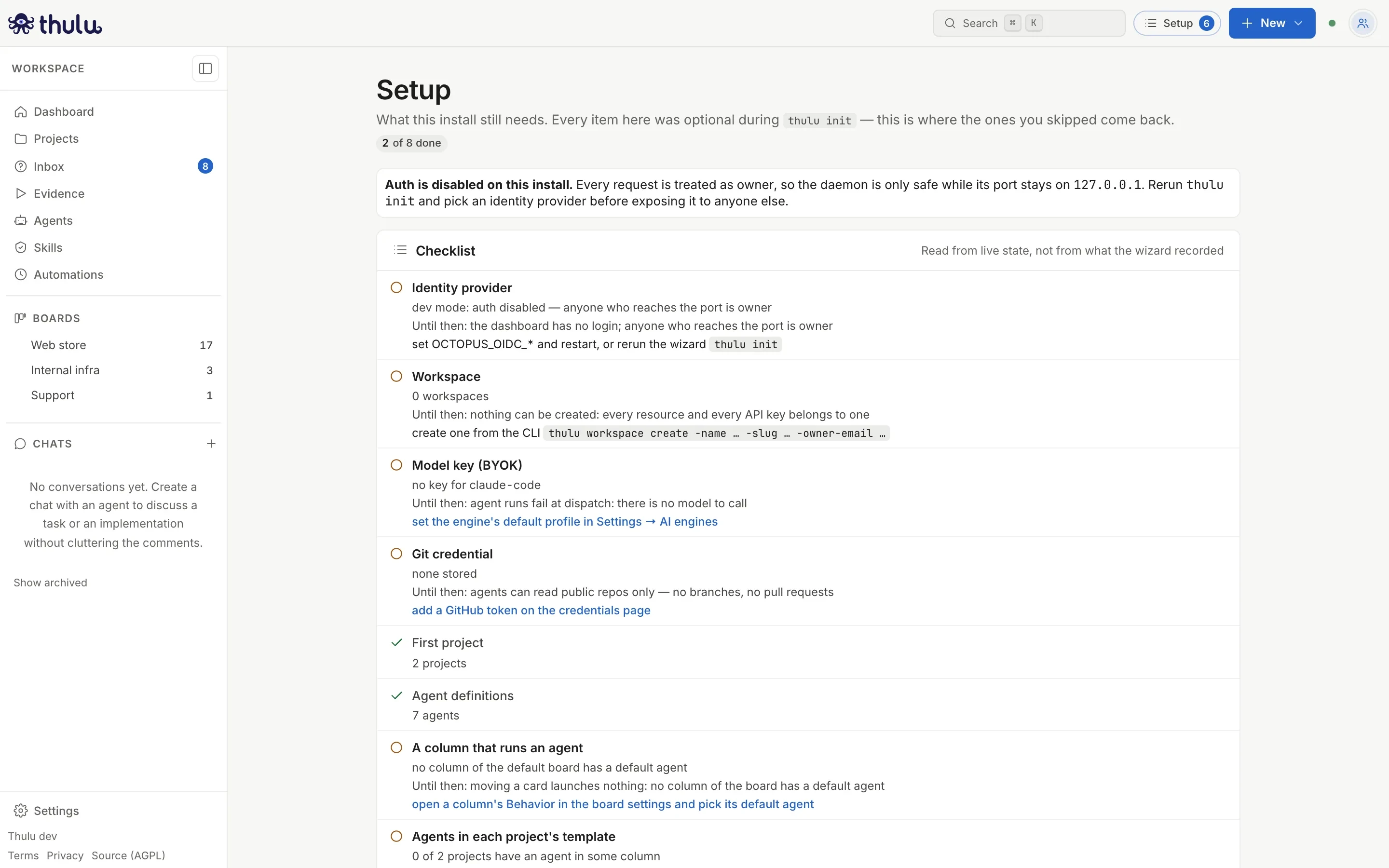
Look at the header. If the “Setup” button appears with a number, the workspace is still missing things (model key, git credential, first project, an agent, a column with an agent). Click to see the list, or follow the “First steps” block on the Dashboard, which shows the same. The number updates when you change page and the button disappears when nothing is left.
-
Read the Dashboard cards. “Open tasks” counts the tasks on all boards that are not in a final stage, with the “in progress” and “in review” breakdown below. “Cost · all time” adds up all recorded runs. The task and cost cards are links: they lead to the board and to Usage.
-
“Recent tasks” has the 8 tasks that were modified last, each with its stage. One click opens the task on its board. With more than one board, each row says which one it belongs to.
-
Choose a board in the sidebar, under “Boards”. The number on the right is how many tasks it has. From there continue in Board.
-
When you want to create something, use “New” in the header, and to go to something that already exists, “Search” (⌘K): both work from any page.
What the Dashboard shows
Section titled “What the Dashboard shows”The Dashboard refreshes by itself every 6 seconds and pauses while the tab is in the background.
| Element | What it shows | Where it leads |
|---|---|---|
| “Open tasks” | Tasks outside a final stage, adding up all boards; below, how many are in progress and in review according to how each stage is configured | Board |
| “Active runs” | Agent containers running now; below, the total and how many have finished | Not a link |
| “Cost · all time” | Total cost of all runs, with sessions and tokens | Usage and costs |
| “Rate limit” | Percentage of the engine’s usage limit, when the engine reports it: “plenty of room”, “warming up” or “near limit”. Without data it says “no data from the engine” | Not a link |
| “Runs this month” | The month’s runs against the plan’s cap. It appears only if the workspace’s plan has a cap | — |
| “First steps” | What the workspace still needs for an agent to work, while anything is pending | Each step, to the page where it is completed |
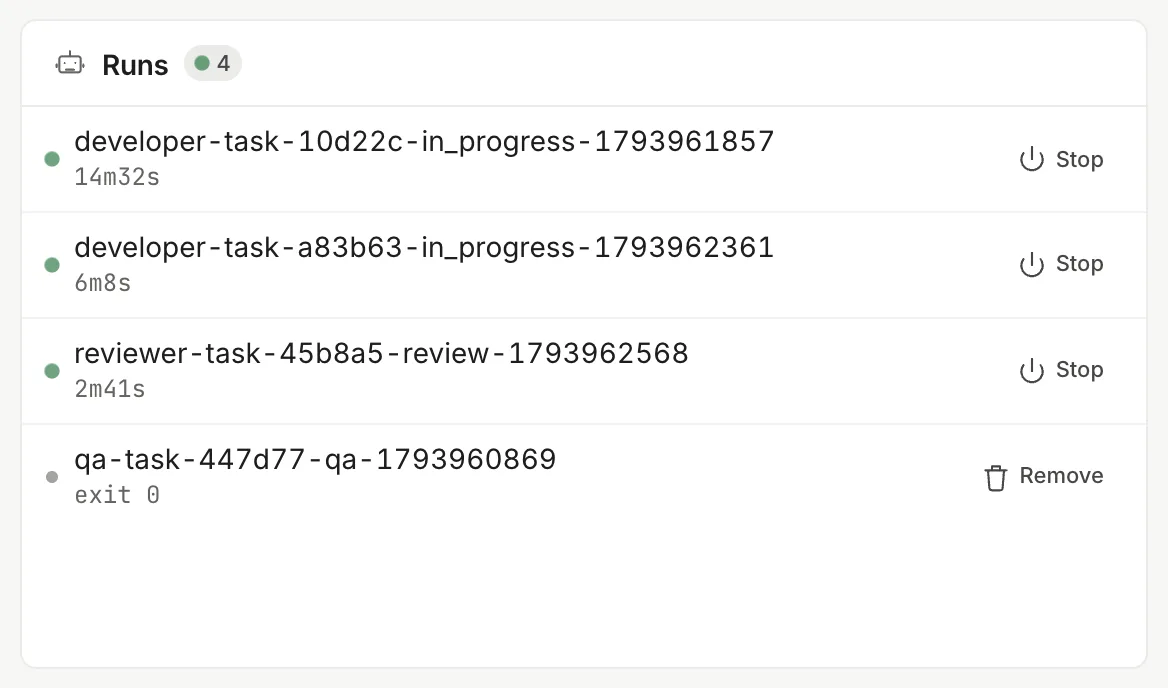
| “Runs” | One row per agent container, with how long it has been running or the exit code if it already finished. The row’s button stops it (“Stop”) or, if it already finished, removes it (“Remove”). The number in the heading counts all containers, finished ones too | — |
| “Recent tasks” | The 8 tasks that were modified last, with their stage in the color configured for it | The task, on its board |
| “Usage” | Tokens, output, total cost, average per session, sessions and turns | — |
Each “Runs” row carries the container’s name: agent, task, stage and start time.
If the daemon stops responding, the cards keep the last value and say so: “Can’t reach the daemon — showing data from …”, with the time of the last data.
The sidebar
Section titled “The sidebar”The sidebar has two modes. In app mode, the usual one, it shows:
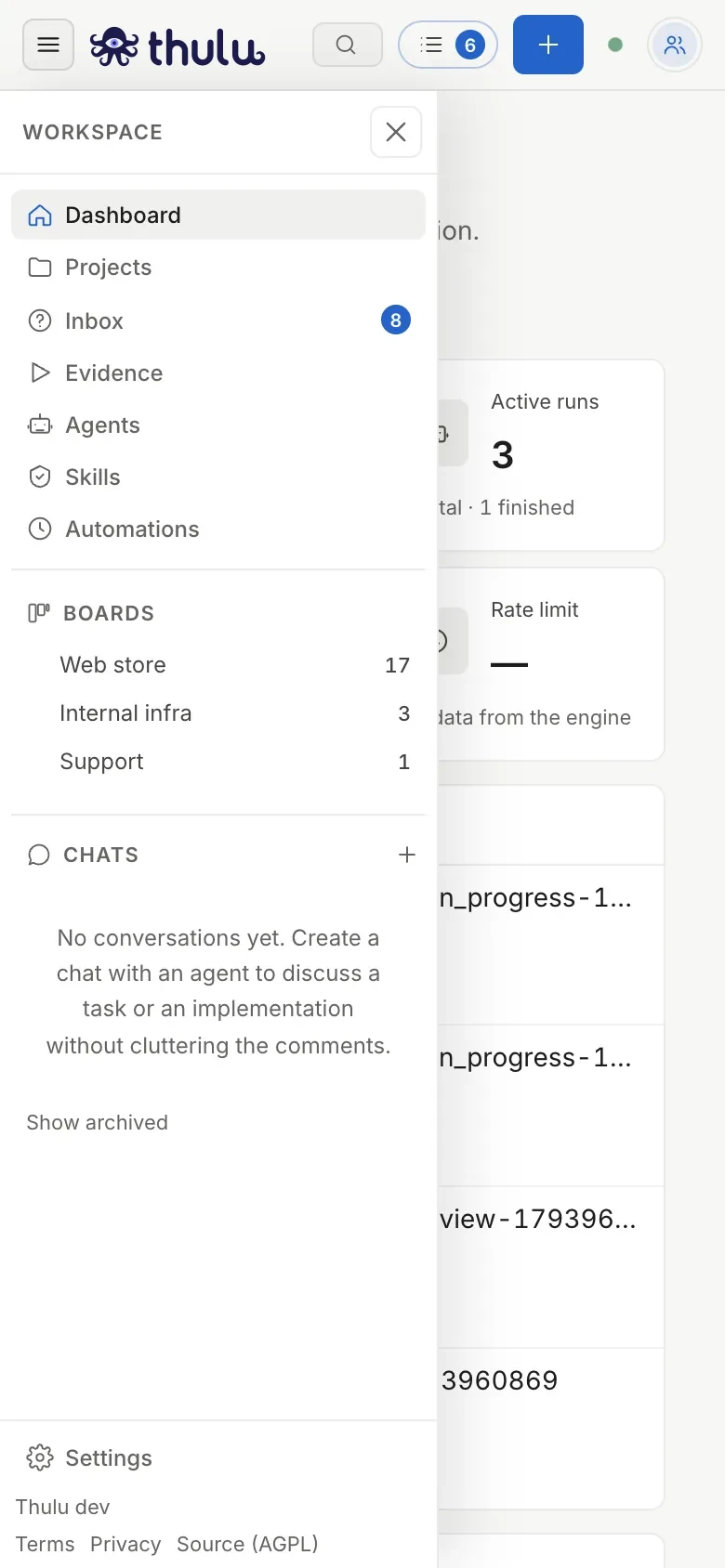
- The work pages: “Dashboard”, “Projects”, “Inbox”, “Evidence”, “Agents”, “Skills” and “Automations”.
- “Boards”: one item per board of the workspace with its number of tasks. On the board the switch is instant; from another page it takes you to that board.
- “Chats”: your conversations with agents, each with the agent’s initials, the last message and the time. A dot marks chats with unread messages and the number next to “Chats” adds up the unread ones. The “+” opens a new chat. See Chat.
- At the foot: “Settings”, the version you are running (with a dot if an update is available) and the links “Terms”, “Privacy” and “Source (AGPL)”, which leads to the code of the version that is running.
At the very top is the workspace name. On an installation with sign-in, that label is a menu to switch workspace, invite people or create a new one (on the SaaS, up to two of your own per account); Workspaces and team explains it.
Collapse the sidebar
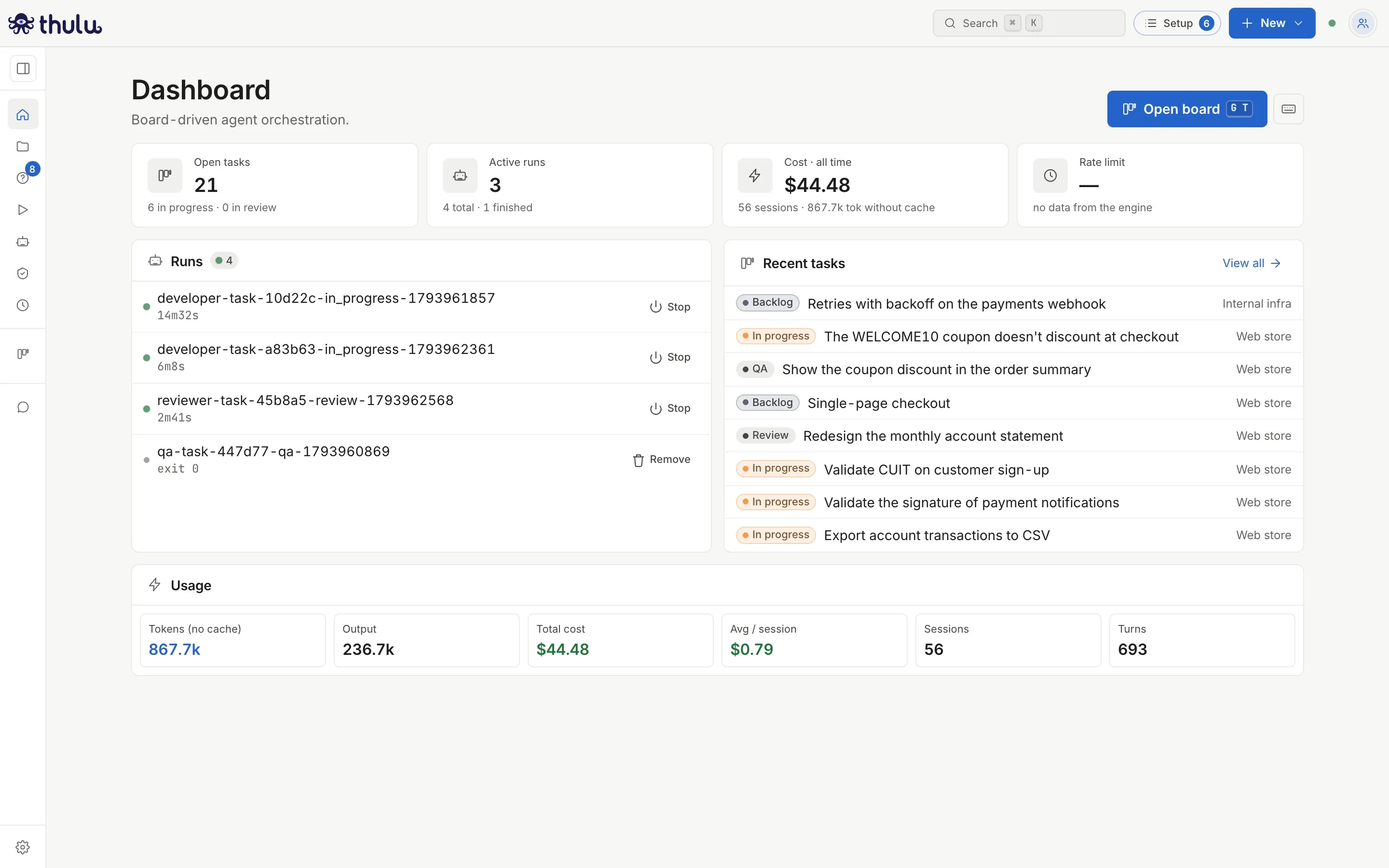
Section titled “Collapse the sidebar”The button to the right of the workspace name collapses the sidebar into a column of icons. Hover over an icon to see its name. A click on the “Boards” or “Chats” icon opens the sidebar again showing that section. The browser remembers whether you left it open or closed.
Settings mode
Section titled “Settings mode”When you enter “Settings” the sidebar swaps its content for the administration sections: “Workspace” (Members, Boards, AI engines), “Integrations” (MCPs, Credentials, Webhooks, API), “Operations” (Sandboxes, Usage, Infrastructure, Health, Updates, Audit log, Language) and, with sign-in, “You” (Account). Settings opens on Boards. “Back to app” returns you to the last page you were on before entering, not always the Dashboard.
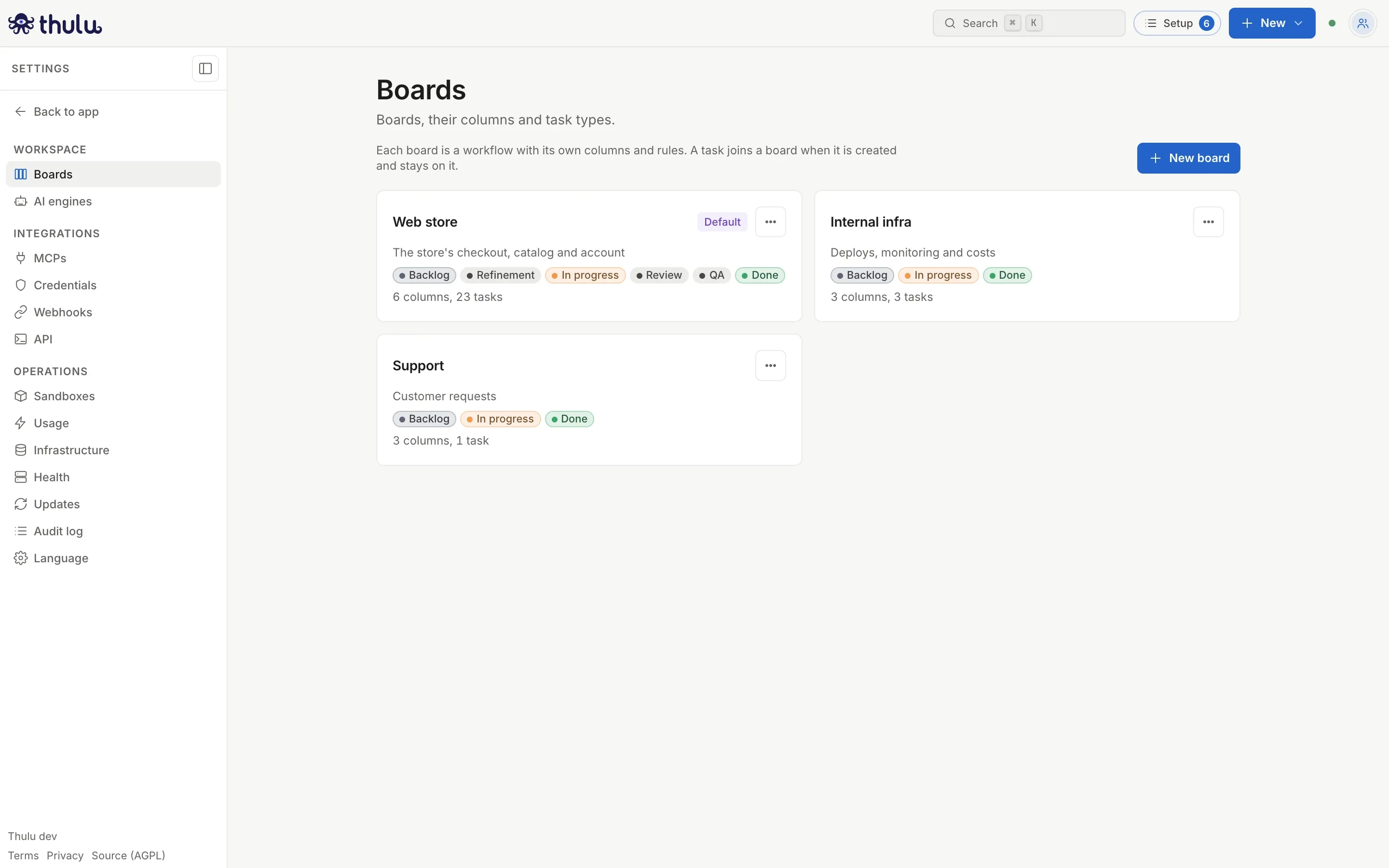
The sidebar switches to this mode in Settings, MCPs, Credentials, Sandboxes, Usage and Infrastructure. The Dashboard’s cost card leads to Usage, so it also changes the sidebar. Some sections depend on the installation: “Members” and “Account” do not appear if the installation does not require sign-in, and “Infrastructure” is seen only by whoever operates the installation. The detail of each section is in Settings.
On the phone
Section titled “On the phone”Below 900 px of width the sidebar starts closed and opens as an overlay menu with the button on the left of the header. It closes by itself when you choose a page or tap outside it. On narrow screens “New” and “Setup” lose their text and keep only the icon and the number.
The header
Section titled “The header”From left to right: the logo (leads to the Dashboard), “Search”, “Setup” if anything is pending, “New”, the daemon status indicator and your account menu. Menus close with Esc or a click outside, and you move through them with the arrow keys.
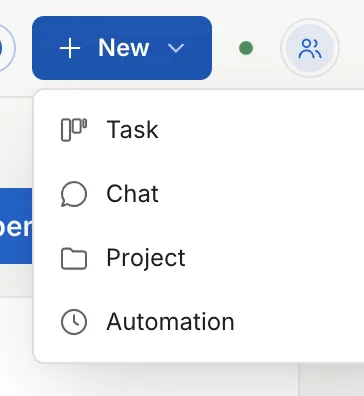
| Option | What it does |
|---|---|
| “Task” | Takes you to the board and opens “New task”. The modal shows which board it will land on and lets you change it. See Tasks. |
| “Chat” | Opens the chat panel with the “New chat” form, without leaving the page. See Chat. |
| “Project” | Takes you to Projects and opens the new project form. See Projects. |
| “Automation” | Takes you to Automations and opens the creation form. See Automations. |
To create a task: “New”, “Task”, write the “Title” and “Create”. “Repos” and “Description” are optional; “Type” appears only if the board has task types. With more than one board, the “Board” field says where it will land (the task appears in its first column) and you can change it.
“Setup”
Section titled ““Setup””It appears only while something is left to configure, and only for whoever can resolve it (admin role). The number is the count of pending items and is read again every time you change page. The page reads the workspace’s real state and follows the order in which it makes sense to complete each item: model key, git credential, first project, agent definitions, a column that runs an agent and agents in each project’s template. Whoever operates the installation also sees, at the top, the identity provider and the workspace, which belong to the whole installation and are resolved with the CLI. Each item says what happens while it is missing and brings a link to the page where it is resolved.
To complete each step, follow Self-hosted install, Credentials and engines, Projects, Agents and Boards and stages.
Daemon status
Section titled “Daemon status”The green dot to the left of the avatar is the daemon’s status, the Thulu process that serves the interface. The interface checks it every 10 seconds. If it does not respond, the dot becomes a red pill with “offline” or “error” and the HTTP code, and the Dashboard’s panels show “Daemon offline”.
Account menu and theme
Section titled “Account menu and theme”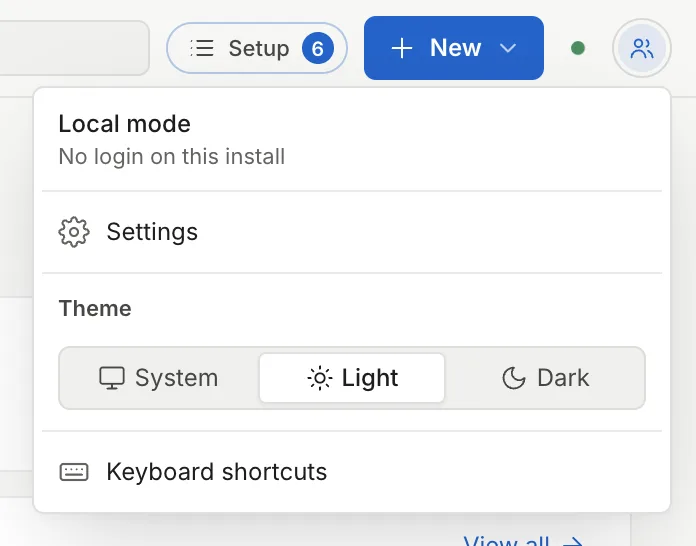
The avatar opens your menu. At the top it shows your name and email, or “Local mode” if the installation does not require sign-in. Below:
- “Account” and “Log out”, only with sign-in.
- “Settings”, the same destination as the foot of the sidebar.
- “Theme”: “System” follows your computer’s light or dark mode; “Light” and “Dark” fix it. The choice is saved in this browser, not in your account, so on another computer you will have to choose it again.
- “Keyboard shortcuts”, which opens the shortcut sheet.
Keyboard shortcuts and search
Section titled “Keyboard shortcuts and search”Press ? on any page to see the shortcuts: the global ones at the top and, below, those of the page you are on.
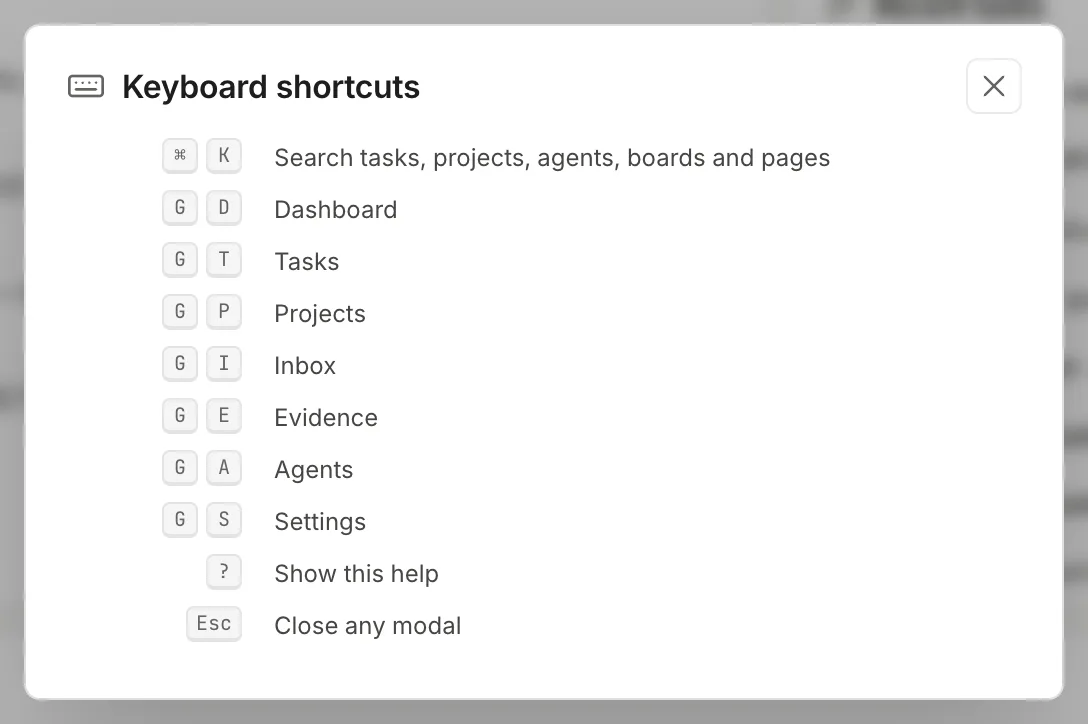
| Shortcut | Action |
|---|---|
| ⌘K (Ctrl+K outside Mac) | Search tasks, projects, agents, boards and pages |
| G then D | Go to the Dashboard |
| G then T | Go to Tasks (the board) |
| G then P | Go to Projects |
| G then I | Go to Inbox |
| G then E | Go to Evidence |
| G then A | Go to Agents |
| G then S | Go to Settings |
| ? | Show the shortcuts |
| / | Go to the page’s filter, on pages that have one |
| N | Create the page’s own item (task, project, agent, case), on pages that have it |
| Esc | Close the open menu, modal or panel |
The two G keys are pressed one after the other, with less than a second between them. Shortcuts are ignored while you type in a field; Esc works anyway. The board also has its own set of shortcuts for cards and tasks, which is in Board.
Global search opens with ⌘K or with “Search” in the header. The / key focuses the current page’s filter: on the board it searches by title, repo or agent; in Projects, Agents and Evidence it filters their own list.
Common problems
Section titled “Common problems”- “Active runs” says 0 and “Runs” is empty even though you have agents created: the Dashboard counts run containers, not agent definitions. The definitions are in Agents and the run history in Agent runs.
- “Setup” does not appear: either the installation is complete, or your role is not admin and you cannot resolve those items.
- The sidebar does not show “Members” or “Account” in Settings: the installation runs without sign-in.
- The “Open tasks” number does not match the board’s: the Dashboard adds up all boards and the board counts only its own.