

Tasks
A task is the board’s unit of work: a title, a markdown description, the repos where the work happens and the agent that runs in each stage. It lives in a column and moves from stage to stage; when it enters a stage with an assigned agent, Thulu launches that agent on the task’s branch. This page covers how to create it, how its detail is laid out and how to organize the work with subtasks and dependencies. How it moves around the board is in Board and what the agent does in each run, in Agent runs.
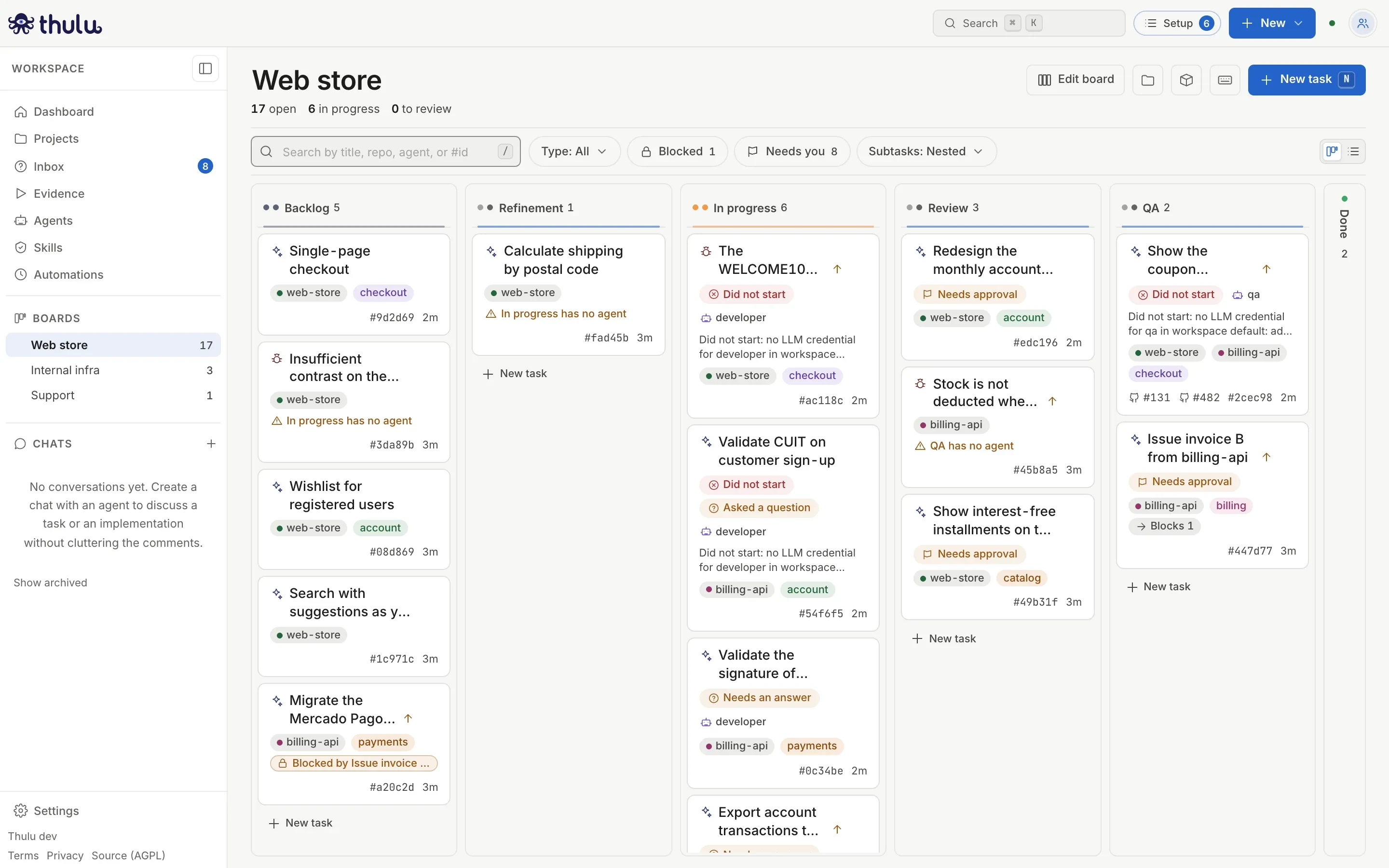
Recommended flow
Section titled “Recommended flow”For a task an agent is going to work on, this order avoids the most common detours:
-
Before creating the task, check that the project has a “Stage template” with the agent for each stage (Projects), or that the column has a “Default agent” (Boards and stages). The task copies those agents when it is created; if the project has no template, it starts with no agents and you have to assign them by hand.
-
Click “New” at the top right and choose “Task” (or “New task” on the board, or the
Nkey). The “New task” modal opens. -
Check the “Board”, choose the repos by clicking their chips under “Repos”, the “Type” if the board has types, and write “Title” and “Description”. If needed, fill in “Priority” and “Tags” (separated by commas). Below the repos, the modal says which agents it will copy from the template. The description accepts markdown. If you want the agent to read it in parts, use the English headings agents look for, such as
## Definition of Donewith- [ ]checkboxes (see Sections).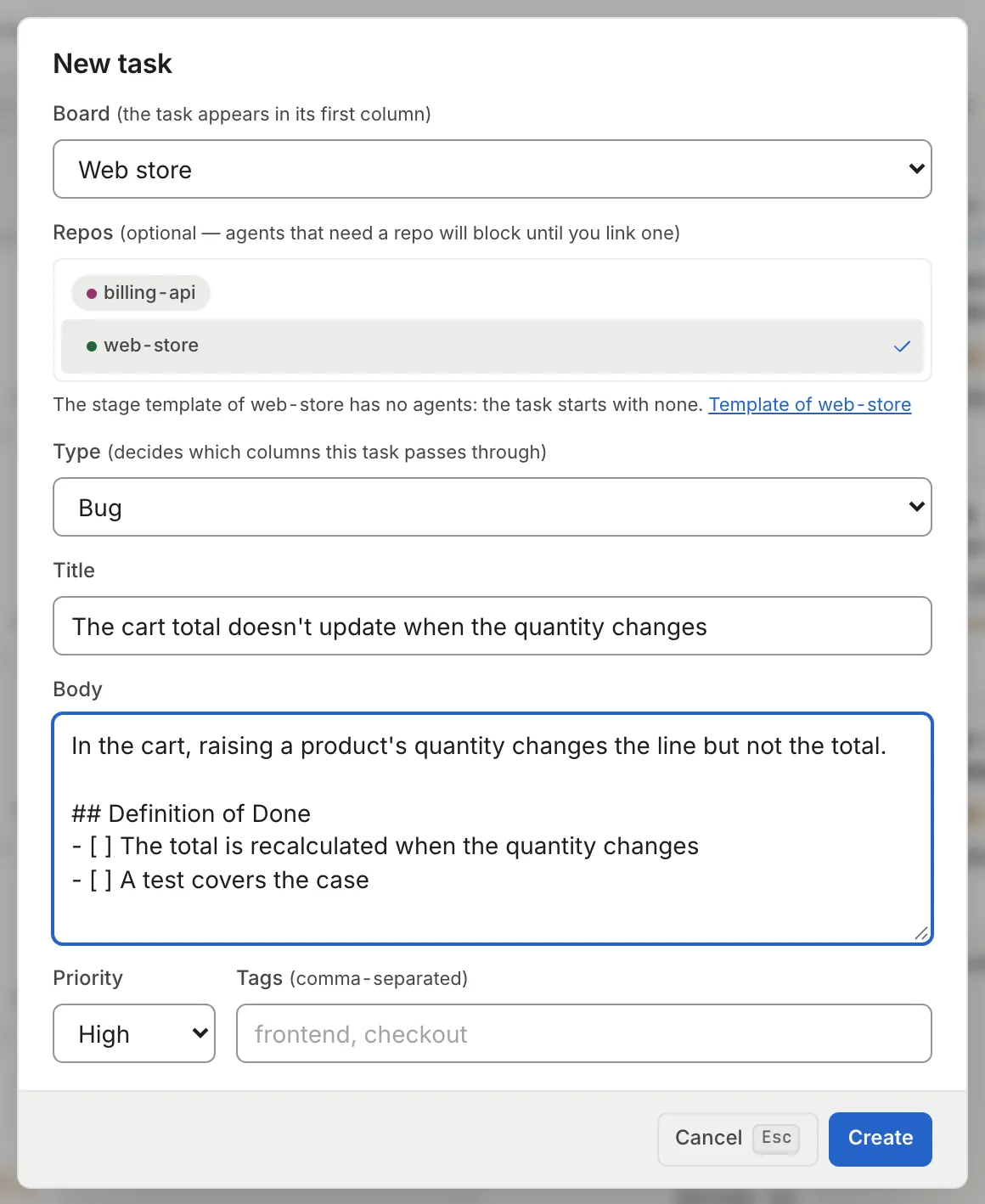
Repos are optional, but an agent that needs a repo does not start without one. -
Click “Create”. The notice “Task created” appears, the card lands in the first column of the board and the task opens in the panel. If the daemon rejects the creation, the reason shows in the same modal and nothing is created.
-
In the task panel, check the “Agent” of each stage. Each value in the right column is a button that opens its selector.
-
If the work splits up, add subtasks from the “Subtasks” section (see Subtasks).
-
When the task is ready for the agent to take it, move it to the next stage with the “Move to …” button in the header or by dragging the card.
Create a task
Section titled “Create a task”There are two paths and they create the same thing, with different scope:
| “New” > “Task” or “New task” | “New task” at the foot of a column | |
|---|---|---|
| Where it appears | Header of any page (from another page it takes you to the board and opens the modal) | At the end of each board column |
| Stage where it starts | The first of the board | That column’s |
| Fields | Board, repos (several), type, title, description, priority and tags | Title and one repo |
| Type | The one you choose, or the board’s default | The board’s default |
| Keyboard | N on the board |
Enter creates, Esc cancels |
Creating in the column is for jotting something down quickly: you type the title, choose a repo from the dropdown (it suggests the last one you used) and press Enter. If you click outside with text typed, it also creates it.
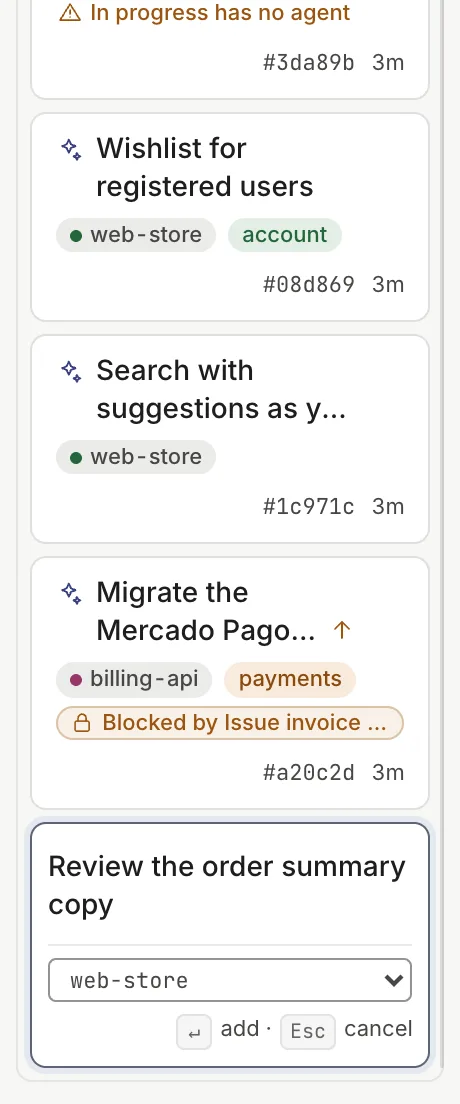
Creating directly in a column with an agent can launch that agent as soon as the task is created, just as if you dragged it there. If that stage’s agent needs a repo and you chose none, “Could not create: Agent … needs a linked repo” appears and the task is not created.
The task detail
Section titled “The task detail”Click a card and the task opens in a panel on the right, with the address #task-<id> in the URL so you can share it. The expand button (or F) takes the panel to full width and the browser remembers it.
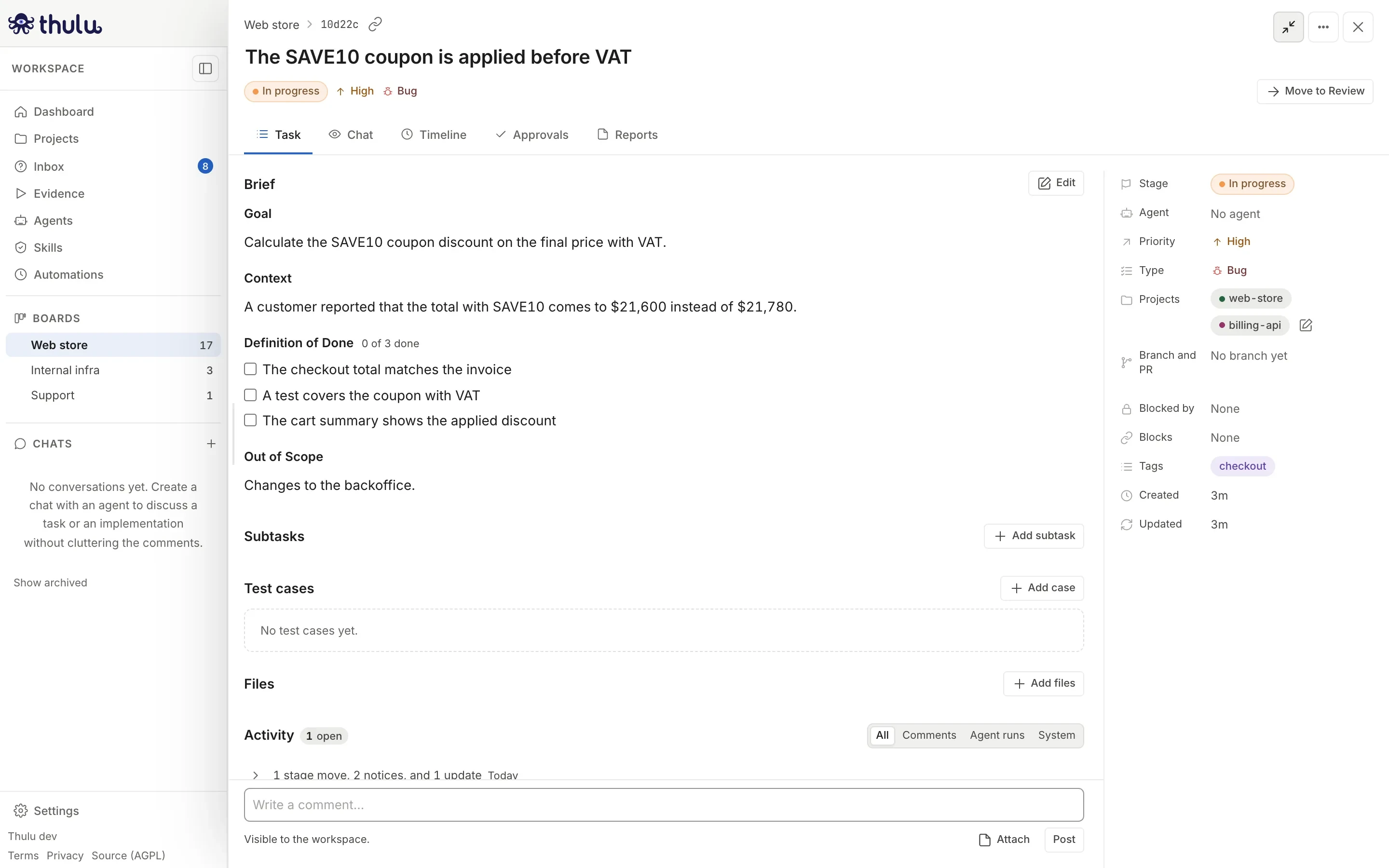
The header shows where the task is (board, parent task if it is a subtask, short id with a button to copy the link), the title (click to edit it; Enter saves, Esc cancels), the stage, the run status, the priority and the type. On the right is the button to move to the next stage (“Move to QA”) and, depending on the status, a main button such as “Answer”, “Review” or “More turns”.
Below the header a strip appears when something is waiting on a person: an agent question, a pending approval, a failing test case, an unmet dependency or all subtasks finished. Each row has a button that takes you to the place.
There are five tabs:
| Tab | What it has |
|---|---|
| “Task” | Description, pull requests, subtasks, test cases, files and activity |
| “Chat” | The live conversation with the run in progress (Agent runs) |
| “Timeline” | Events, prompts and logs of each run, and the task’s token and cost usage |
| “Approvals” | The task’s approvals, with the number pending (Inbox) |
| “Reports” | The long reports agents leave |
Properties
Section titled “Properties”The right column (or a grid below the header if the panel is narrow) has the properties. The editable ones open a selector on click; changes save when you choose.
| Property | What it is | How it is edited |
|---|---|---|
| “Stage” | Column where the task is | Stage selector, without the ones its type skips (S) |
| “Agent” | Agent of the current stage and, below, who comes next (“Next: qa-tester in QA”). If the task has a project, a link to the template they came from | Selector with one agent per stage (A) |
| “Priority” | None, Low, Medium, High or Urgent | Selector (P) |
| “Type” | Only if the board has types | Selector |
| “Projects” | Linked repos | Pencil button: search, link or create a project |
| “Branch and PR” | The task’s branch | Copy the branch |
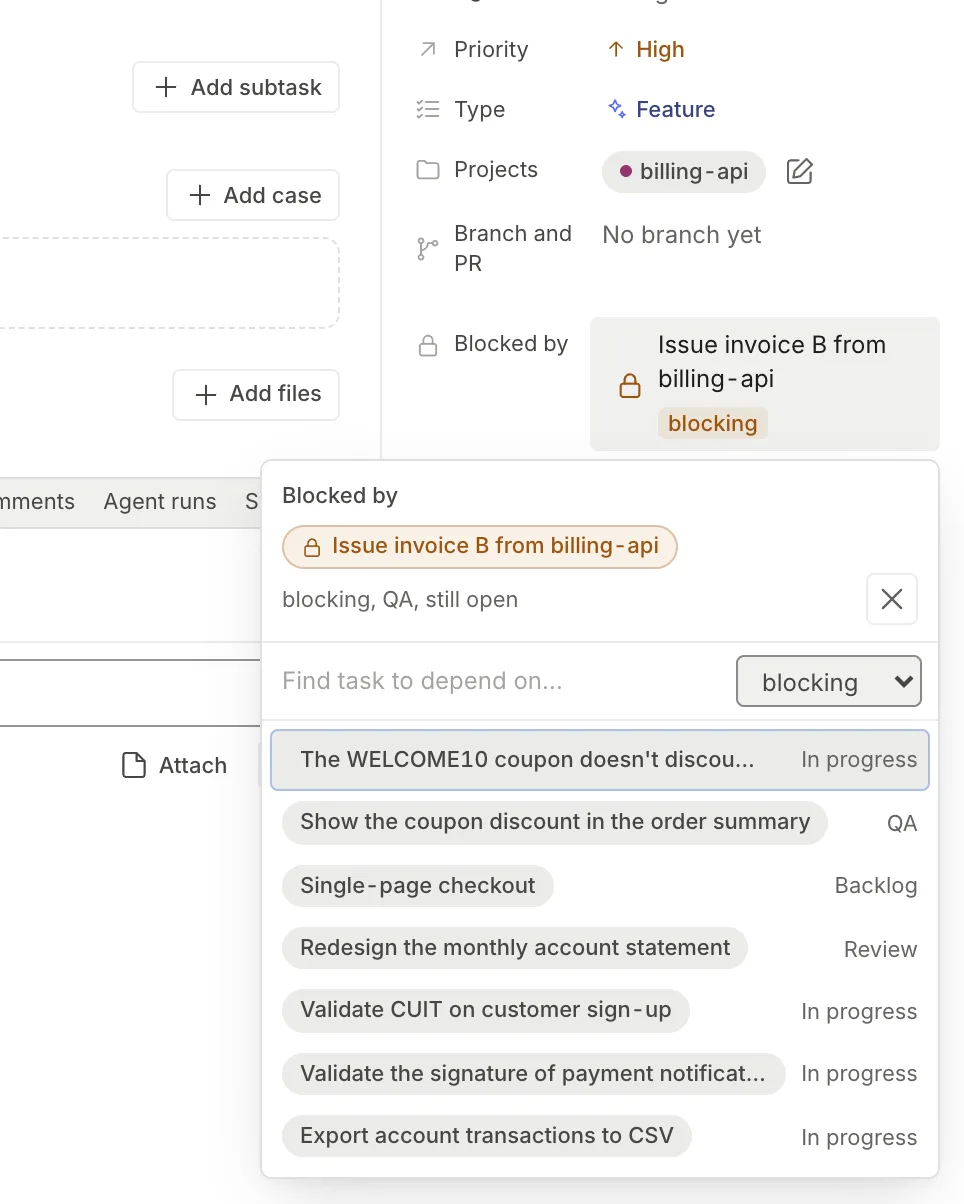
| “Blocked by” / “Blocks” | Dependencies in both directions | Dependency selector (D) |
| “Tags” | Free text | Type and Enter (L) |
| “Runs” | How many runs, tokens and cost the task has | One click leads to “Timeline” |
| “Created” / “Updated” | Relative dates | — |
The description and its sections
Section titled “The description and its sections”The description is markdown. The text before the first ## heading is the summary; each ## Title opens a section that is shown with its own heading, and the - [ ] checkboxes become checkboxes you can tick without entering edit mode. Next to the name of each section with checkboxes the count appears (“2 of 5 done”).
To edit, click “Edit” (or E). The editor replaces the view, saves on its own while you type and shows the status (“Saving…”, “Saved 4 seconds ago”). “Done” leaves the editor, “Discard changes” goes back to the text from when you started, and pasting an image uploads it as a file. If you paste a whole description inside a ```md block, it is saved without that block, so it reads as a document and its checkboxes can be ticked.
Agents read and write the same sections, and they look for them by a fixed English name: the refinement skill fills in Goal, Context, Definition of Done, Out of Scope and Risks, and the agent that implements ticks each Definition of Done checkbox with an evidence note. The UI shows the heading as you wrote it and translates nothing. If you title a section with some other name (“## Done criteria”), the agent does not recognize it as that section and may add a separate “Definition of Done”. In the editor, “Add sections” appends the missing ones of Goal, Context, Definition of Done and Out of Scope. By hand, use these headings:
Short summary of what is happening and why it matters.
## GoalWhat has to end up working.
## ContextWhere the problem is, which repos it touches.
## Definition of Done- [ ] Verifiable criterion 1- [ ] Verifiable criterion 2
## Out of Scope- What this task does not do
## Risks and ## Notes also exist. Any other heading works as a section of its own: it is shown and can be ticked, but no agent fills it in by itself.
If a checkbox has the same text as a subtask, the stage of that subtask appears next to it. If not, and the checkbox is unticked, hovering shows “Make a subtask” (it does not appear inside a subtask, because a subtask cannot have subtasks of its own).
Files and activity
Section titled “Files and activity”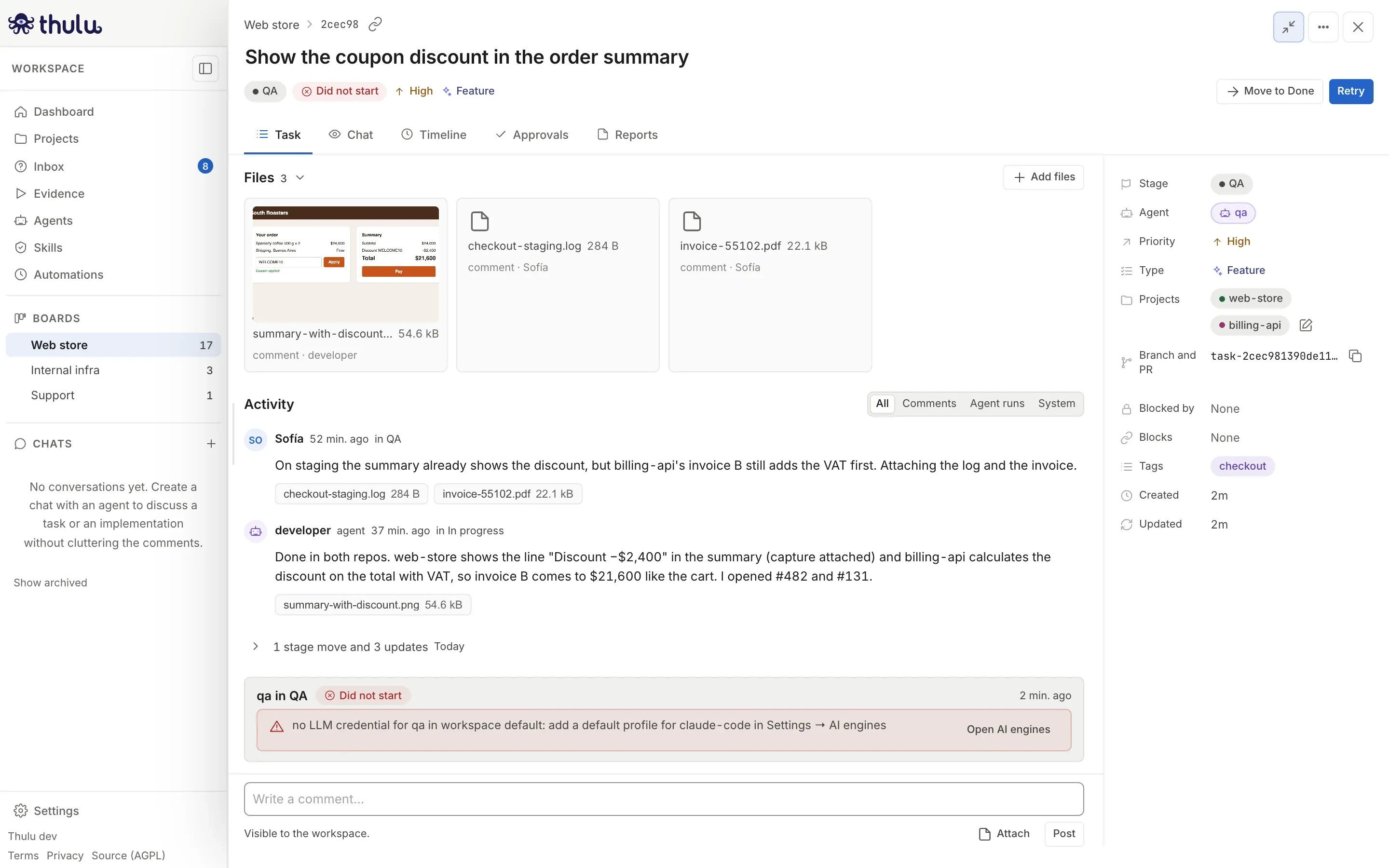
“Files” starts folded, with the count by type next to the title (“2 images · 1 video”). Expanded, it lists everything attached to the task, with a thumbnail for images and the origin below (“comment”, “body”, “upload”). To add, click “Add files”, or drop or paste the file onto the tab. The cap is 50 MB per file. When you delete an attachment, Thulu warns that wherever it was embedded a broken link will remain.
“Activity” is the task’s conversation, with the filters “All”, “Comments”, “Agent runs” and “System”. Comments, threads, mentions of agents and the “Write a comment…” box are explained in Conversation and threads.
Pull requests seen from the task
Section titled “Pull requests seen from the task”When the task has PRs, the “Task” tab shows the “Pull requests” section below the description, with one row per PR: number, title, CI as “passed of total”, review status and “Ready” when it is approved, CI passed and GitHub can merge it. Expanded it adds state (Open, Draft, Merged, Closed), files, lines, commits, branch and why it is blocked. Thulu reads GitHub with the project’s credential. Full CI needs the Checks: read permission of the GitHub App; without that permission it counts only GitHub Actions jobs and the row says so. Without a credential it shows “No GitHub credential for this project.” with a link to add one (Git and GitHub).
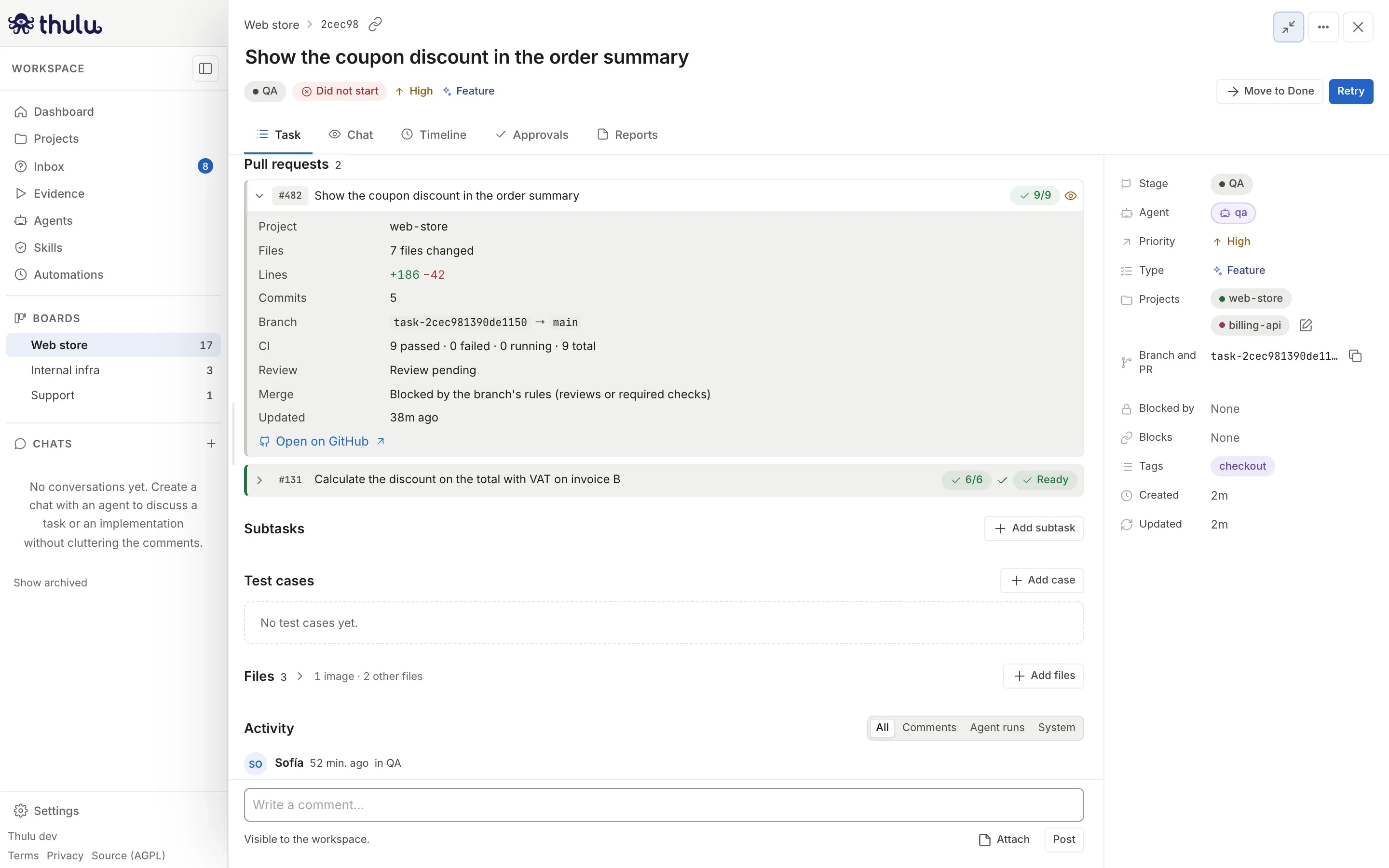
A subtask has no branch or PR of its own: the “Branch and PR” row says “Shared with the parent”.
If a PR did not open on its own, “Force PR” in the panel’s “…” menu pushes the branch and opens a PR in each linked repo that does not have one. In a project uploaded from a folder there is no PR: the branch is carried to another with “Merge into…” (Projects).
Subtasks
Section titled “Subtasks”A subtask is a task with a parent. It starts on the board and with the parent’s type, copies its projects and its agents (you can change them), and works on the same branch: the whole group goes out in a single PR. There is only one level; a subtask cannot have subtasks.
-
Open the parent task and, in “Subtasks”, click “Add subtask” (or
Shift+N, or “Add subtask” in the card menu). -
Write the title and press
Enter. The field stays ready for the next one. -
To create several at once, paste a list into the field. Thulu strips bullets, checkboxes and numbers, shows you each title to edit or remove, and creates them all with “Create N subtasks”.
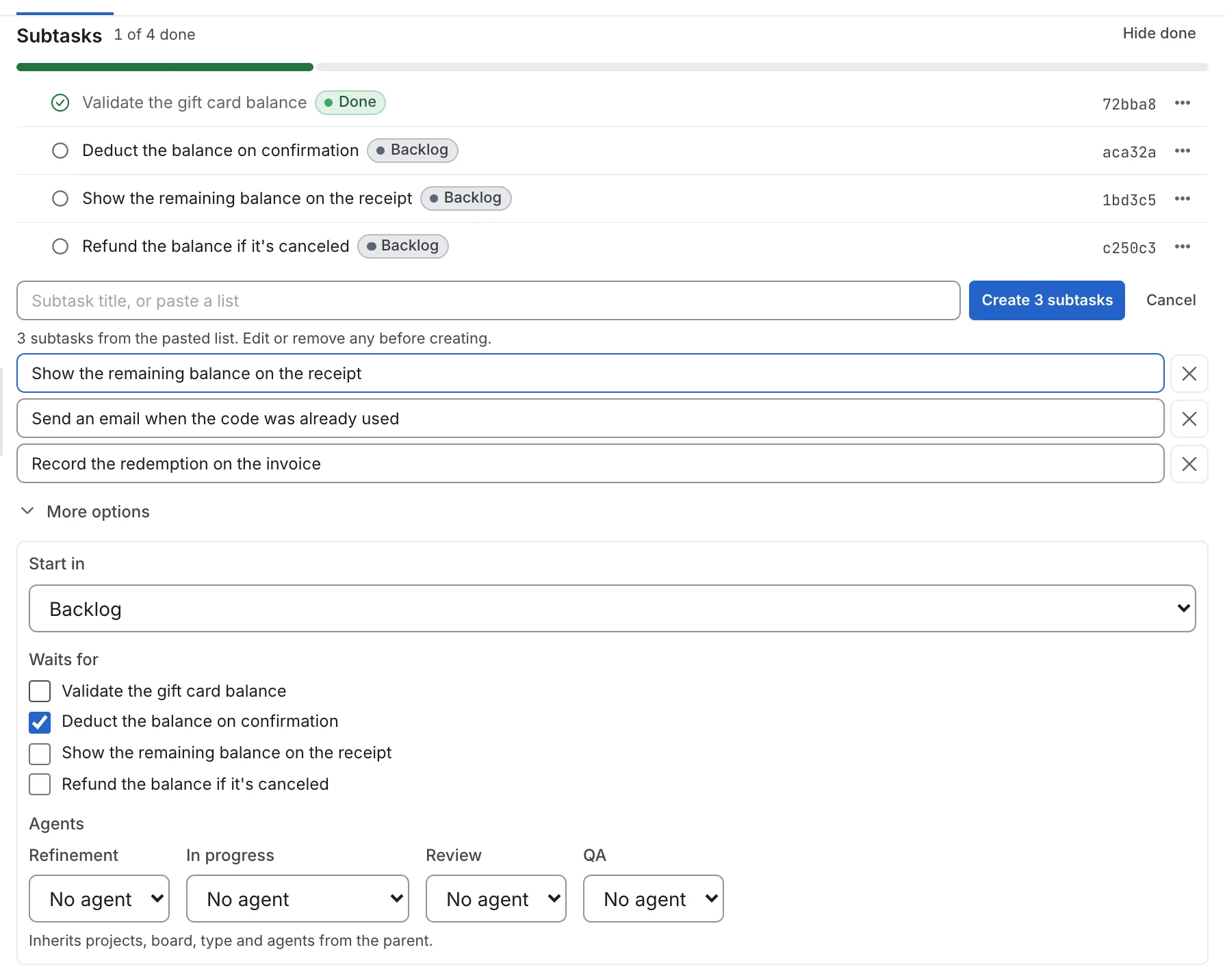
A pasted list is reviewed before creating. -
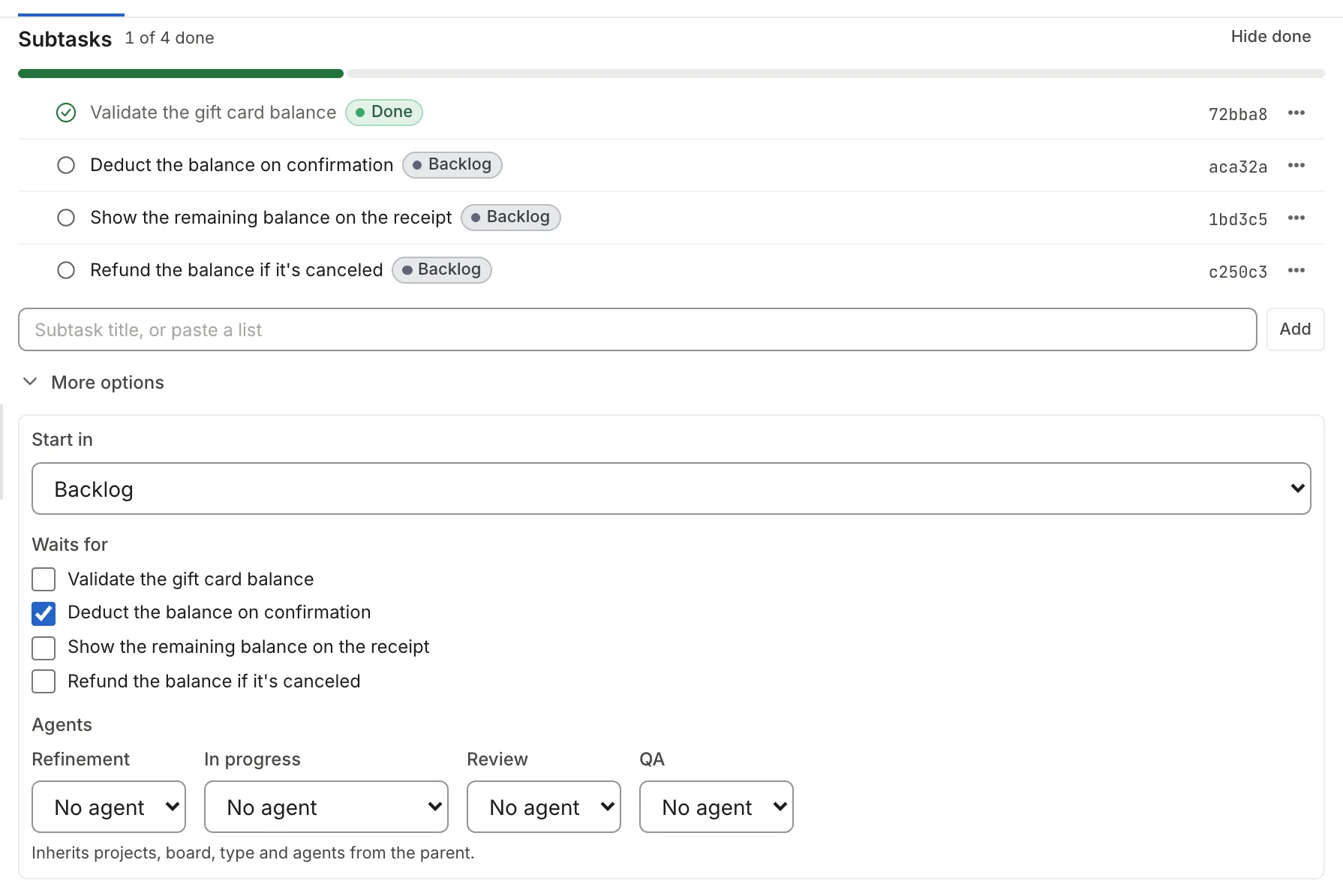
“More options” adds three settings: “Start in” (the initial stage), “Waits for” (other subtasks that have to finish first; only if it starts in the first stage) and “Agents” (per stage, with “Parent’s” as the default value).
Each row’s “…” menu has “Open”, “Move to stage”, “Mark done”, “Waits for…”, “Move up”, “Move down” and “Delete”. The order of the list is for reading: what decides which runs first is “Waits for”. You can also reorder by dragging the row.
Inside a subtask, the header has a link to the parent (U) and arrows to go to the previous or next subtask ([ and ]). On the board, the “Subtasks” selector in the bar chooses whether they show “Nested” inside the parent card (with a button to expand them) or “As cards” in their own column.
The parent does not move by itself when the subtasks finish: the attention strip says “All 4 subtasks are done” and you take the step. If you move the parent to the final stage with open subtasks, Thulu asks for confirmation; those subtasks stay on the board and keep committing to the shared branch.
Dependencies
Section titled “Dependencies”A dependency says that one task waits for another. You add it from “Blocked by” in the properties: choose the type, search for the task and click.
| Type | What it does |
|---|---|
| Blocking | The task cannot leave the board’s first stage until the other one reaches a final stage. It can only be added while the task is in that first stage |
| Heads-up | Informational: it shows on both tasks and stops nothing |
A held task shows a padlock and “Blocked by …” on the card, and the “Blocked” filter in the bar gathers them. When the blocker finishes, the task is free but does not move by itself: you have to move it.
Task types
Section titled “Task types”If the board has types (for example Feature, Bug and Maintenance), each task has one and the type decides which columns it skips: a bug can go from Backlog to In progress without passing through Ready. A skipped column does not appear in that task’s stage selector and the board does not let you drop the card there. Types are defined in the board editor (Boards and stages); on the board, the “Type” filter shows only one.
Other actions
Section titled “Other actions”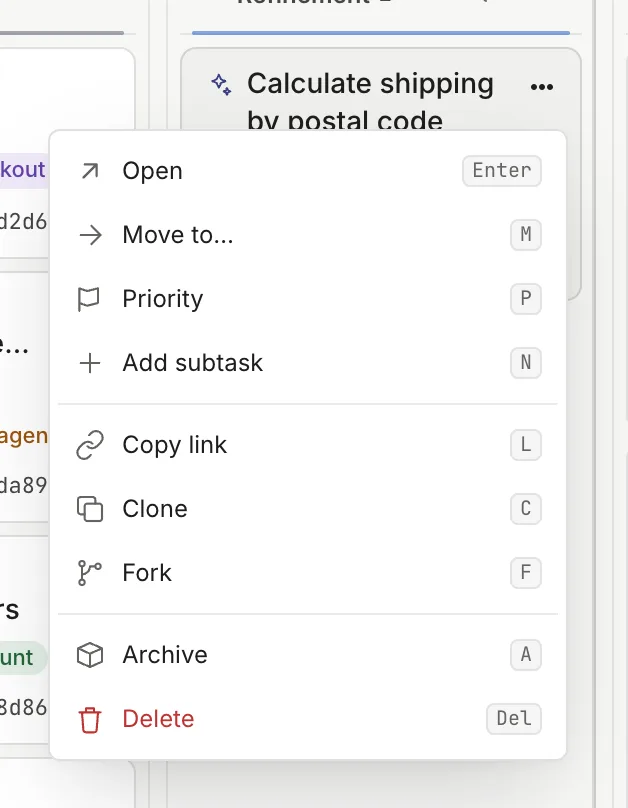
The card’s “…” menu and the panel’s have almost the same actions:
| Action | What it does |
|---|---|
| “Move to…” | Choose a stage without dragging (M) |
| “Clone” | Copies title, description, repos and agents, without comments or history |
| “Fork” | Copies everything (comments, approvals, attachments) and creates a new worktree from the current branch |
| “More turns” | Runs the stage’s agent again with double the budget. On the card it appears only if the run ran out of turns |
| “Copy link” | A link that opens the task |
| “Archive” | Takes the task off the board with its subtasks; comments, runs and branch stay. Only on top-level tasks. It is restored from the board’s “Archived” button |
| “Delete” | Deletes the task and cleans up its worktrees, with confirmation. If it has subtasks, the confirmation lists them and they are deleted with it. Only an admin can delete. It cannot be undone |
A finished task stays in the board’s final column. To take it out of view without losing its history, archive it.